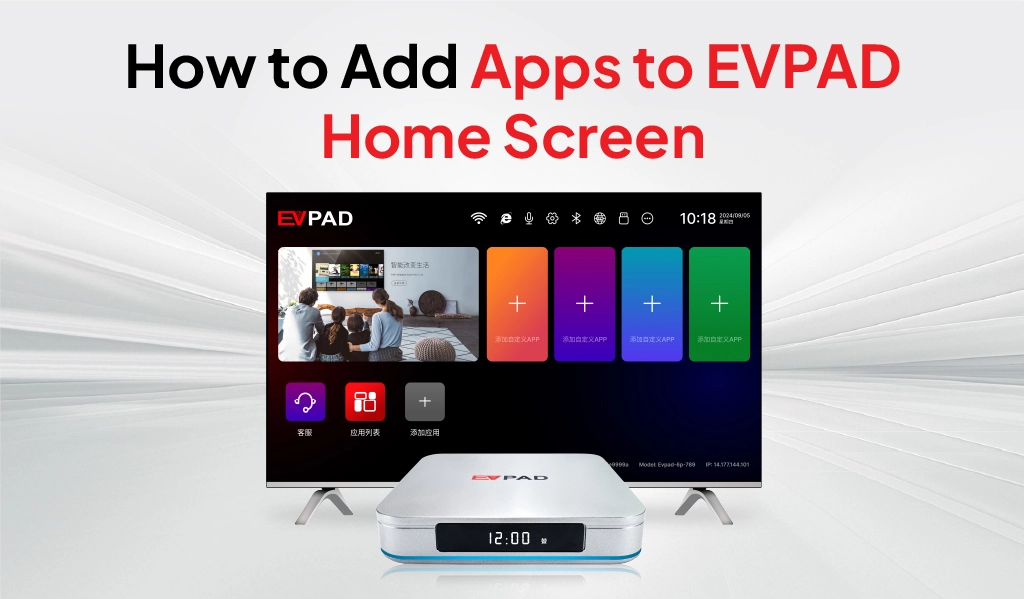
Managing apps on an EVPAD is easier once you understand the difference between installing an app and adding an app to the home screen. Installing adds the application to your EVPAD device, while adding it to the home screen simply creates a shortcut so you can open it faster.
This guide explains how to find EVPAD apps, install them, add frequently used apps to the home screen, remove shortcuts, and fix common issues when an app does not appear. The steps are designed to help both new and existing EVPAD users manage apps more efficiently without unnecessary setup confusion.
Important: Installing an app and adding it to the EVPAD home screen are two different actions. Installing puts the app on your EVPAD, while adding it to the home screen creates a shortcut for faster access.
Where to Find Apps on EVPAD
EVPAD apps can usually be found in two main places: the app store or app download area, where you can browse and install available applications, and the My Apps or installed-app list, where apps that are already installed on your device are displayed.
If you are looking for a new app, start from the EVPAD app store or download section and search for the application you want. If the app has already been installed but you cannot see it on the home screen, check the full app list first. An installed app does not always appear automatically as a home-screen shortcut.
- App store / download area: Use this section to find and install available EVPAD apps.
- My Apps / app list: Use this section to view applications that are already installed on the device.
- Home screen: Displays selected shortcuts for faster access to frequently used apps.
The exact menu names and layout may vary slightly depending on your EVPAD model, launcher, or software version, but the basic workflow is the same: find the app, install it if necessary, then add a shortcut to the home screen if you want quicker access.
How to Install Apps on EVPAD
If the app you want is not already installed, you will need to download and install it before you can add it to the EVPAD home screen. The exact menu names may vary slightly by model or software version, but the general process is similar across recent EVPAD devices.
- Open the EVPAD app store or app download section. From the home screen, navigate to the area used to browse available applications.
- Find the app you want to install. Browse the available categories or use the search function if your EVPAD interface provides one.
- Select the app and choose Download or Install. Wait for the installation process to finish before leaving the screen.
- Open My Apps or the installed-app list. Confirm that the app now appears on your EVPAD.
- Launch the app once to confirm it works. After that, you can add it to the home screen for faster access.
If the app is already visible in My Apps or the installed-app list, you do not need to install it again. You can move directly to the next section and create a home-screen shortcut.
Tip: Only install apps from sources you trust. App availability can vary by EVPAD model, region, and software version.
For specific EVPAD applications, see our step-by-step guides to the EVPAD Karaoke App and the EVPAD Secret Garden App.
How to Add Apps to the EVPAD Home Screen
Once an app is installed on your EVPAD, you can add it to the home screen for faster access. This does not install the app again — it simply creates a shortcut so you can open it directly from the main interface.
Depending on the EVPAD launcher or software version, you may see either an “Add Custom App” section or an “Add Apps” option. Both are used to place installed apps on the home screen, but the steps are slightly different.
Method 1: Use “Add Custom App”
Step 1: On the EVPAD home screen, move to the “Add Custom App” section.
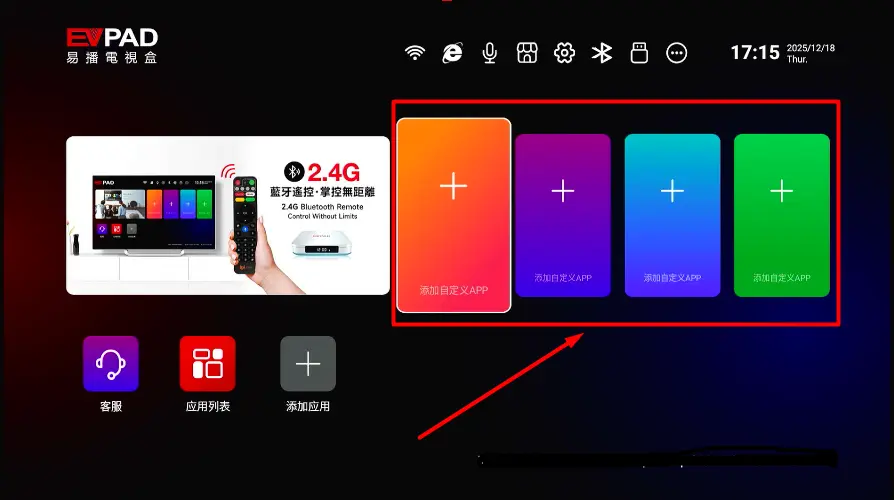
Step 2: Press and hold the OK button on the EVPAD remote to open the app selection screen.
Step 3: Find the app you want to add and press OK to select it. A checkmark should appear next to the selected app.
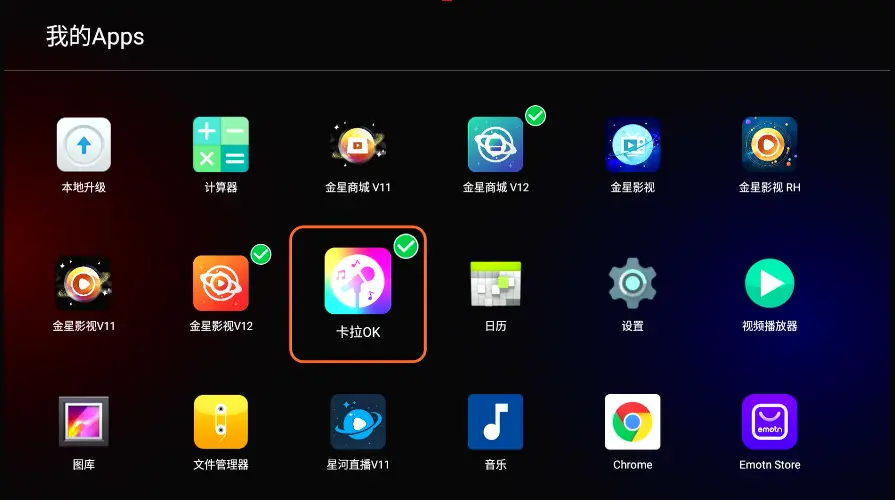
Step 4: Return to the home screen. The selected app should now appear in the custom app area and can be opened directly from there.
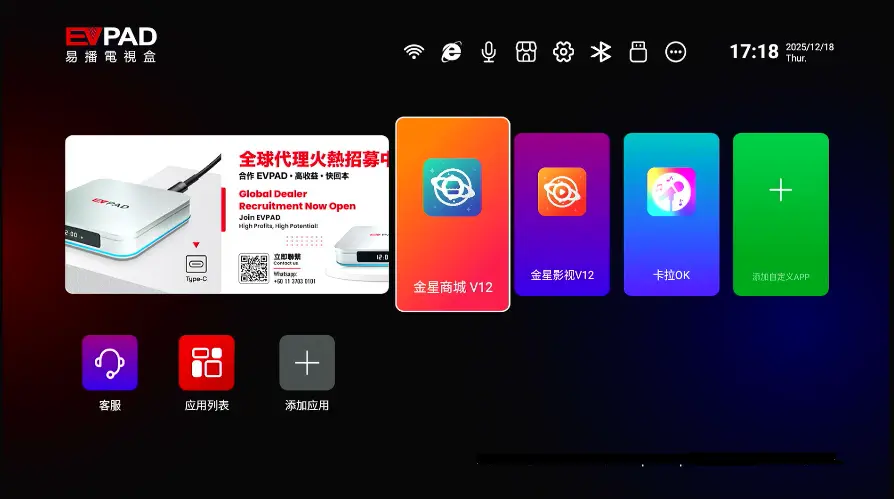
Method 2: Use “Add Apps”
Step 1: From the EVPAD home screen, navigate to the “Add Apps” section and press OK.
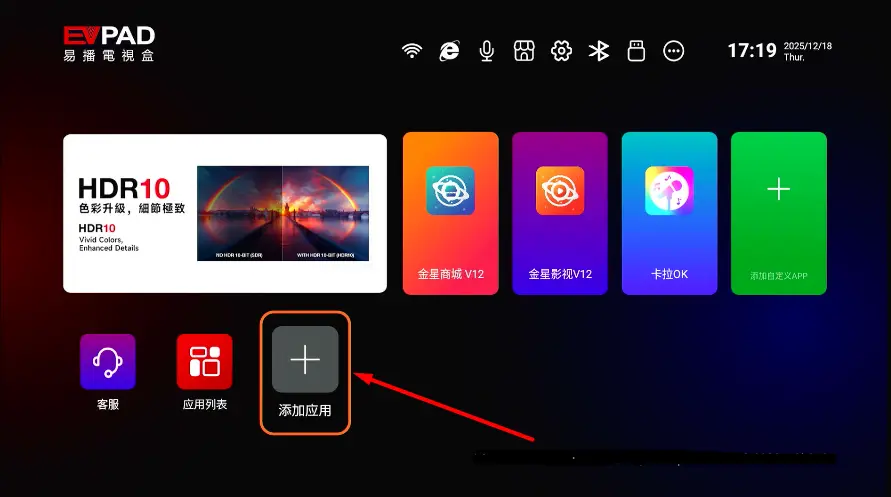
Step 2: Browse the installed app list, highlight the application you want, and press OK to select it.
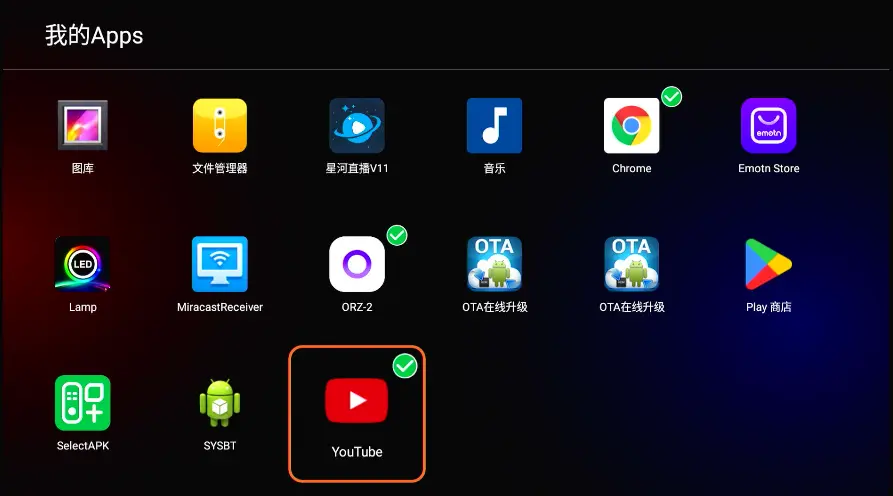
Step 3: Return to the home screen and confirm that the new shortcut is visible.
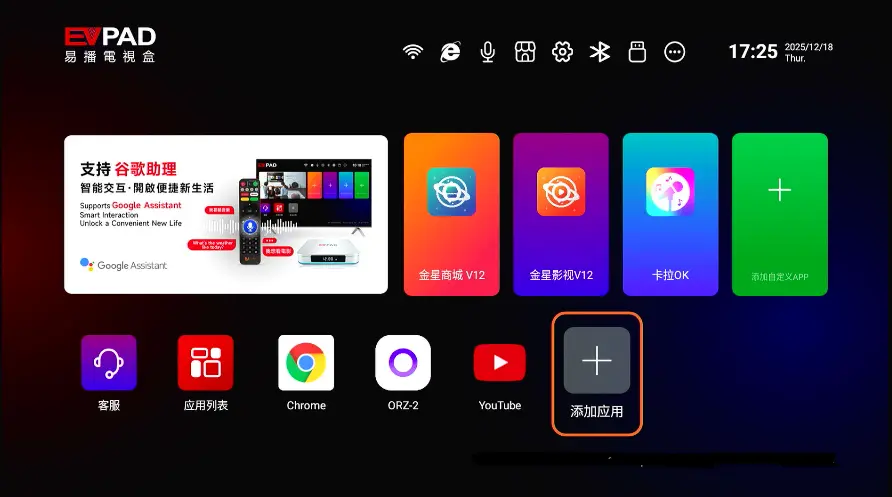
If the app does not appear after following either method, first confirm that it is installed in My Apps or the full app list. If it is installed but still missing from the home screen, the troubleshooting section below covers the next steps.
How to Remove an App from the EVPAD Home Screen
If you no longer want an app shortcut on the EVPAD home screen, you can remove it without uninstalling the app itself. The application will remain on your EVPAD and can still be opened from My Apps or the full installed-app list.
- Open “Add Apps” or “Add Custom App”. Use the same section you used when adding the shortcut.
- Find the app you want to remove. Move the cursor to the app in the selection list.
- Press OK to deselect it. If a checkmark is shown, it should disappear once the app is deselected.
- Return to the EVPAD home screen. The shortcut should no longer appear there.
Important: Removing an app from the EVPAD home screen only removes the shortcut. It does not delete the app, its account, or its saved data.
If the shortcut remains visible after you deselect the app, restart the EVPAD and check the home screen again. If the app itself is missing from the installed-app list, that is a different issue and should be treated as an installation or app-availability problem rather than a shortcut problem.
What to Do If an App Does Not Appear on the Home Screen
If you have installed an app but it does not appear on the EVPAD home screen, the problem is usually related to the shortcut rather than the installation itself. Use the checks below before reinstalling the app.
- Confirm that the app is installed. Open My Apps or the full installed-app list and check whether the application is present. If you can find and open it there, the app is installed correctly.
- Try adding the shortcut again. Return to “Add Apps” or “Add Custom App”, select the app, and press OK to confirm it.
- Check whether the app is already selected. If a checkmark already appears next to the app, deselect it, return to the home screen, then add it again. This can refresh the shortcut.
- Restart your EVPAD. A simple restart can refresh the launcher and make newly added shortcuts appear correctly.
- Check for app or system updates. If the app opens normally but cannot be added to the home screen, the behavior may be related to the current app version, launcher, or EVPAD software version.
- Try the other shortcut method. If “Add Custom App” does not work, try “Add Apps”, or vice versa, if both options are available on your EVPAD.
Remember: An app can be installed and working normally even if it is not shown on the EVPAD home screen. You can still launch it from My Apps or the full app list.
If the application is missing from both the home screen and the installed-app list, return to the EVPAD app store or download area and check whether the app needs to be installed again. App availability may also vary by EVPAD model, region, and software version.
Tips for Keeping Your EVPAD Home Screen Organized
A clean home screen makes EVPAD easier to use, especially if several family members share the same device. Instead of adding every installed app, keep only the applications you open most often.
- Keep frequently used apps on the home screen: Pin the apps you use every day so they are easier to access.
- Avoid too many shortcuts: Adding too many apps can make the interface feel cluttered and slower to navigate.
- Use My Apps for less-used applications: Apps do not need to be on the home screen to remain installed and usable.
- Review shortcuts occasionally: Remove apps you no longer use regularly and replace them with more useful shortcuts.
- Expect small interface differences: Shortcut limits, menu names, and layout options may vary depending on the EVPAD model, launcher, or software version.
The best setup is usually a simple one: keep your most-used entertainment apps on the home screen and leave less frequently used apps in the full app list.
Considering an EVPAD Upgrade?
Explore the EVPAD 12P International Version with Android 12, Wi-Fi 6, 4GB RAM, 64GB storage, and updated EVPAD features.
Final Thoughts
Managing apps on EVPAD becomes much easier once you separate three different actions: installing an app, adding a shortcut to the home screen, and removing that shortcut. An app can remain fully installed even when it is not visible on the main screen.
For the best experience, install only the apps you need, keep your most frequently used shortcuts on the home screen, and use My Apps or the full app list for everything else. If a shortcut does not appear, first confirm that the app is installed before trying the home-screen setup again.
For authentic EVPAD products, product guidance, and competitive pricing, you can shop through EVPADSG.