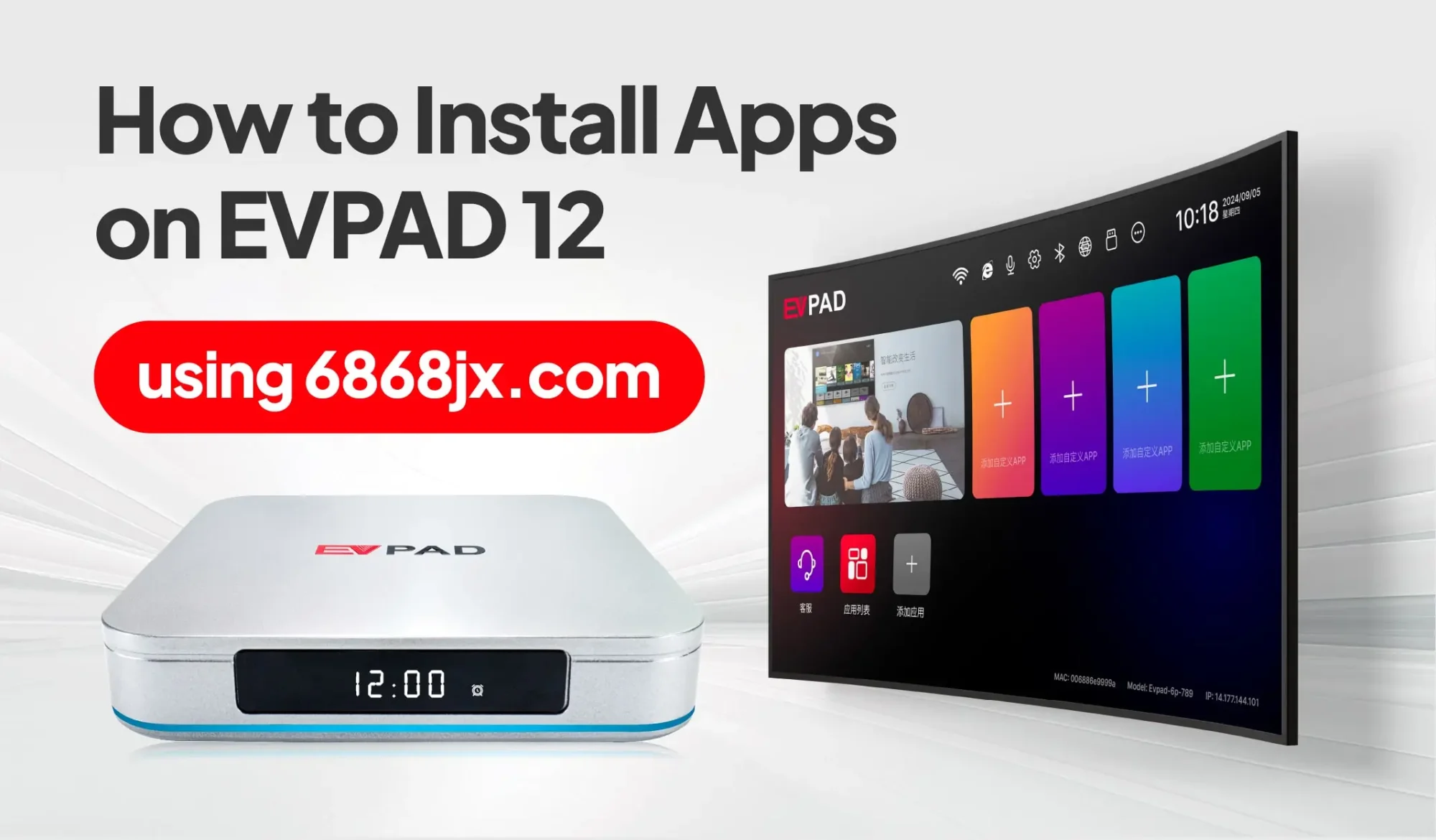
Venus V12, also known as JinXing Video v12, is designed for the EVPAD 12 series, including EVPAD 12P and EVPAD 12S. If you have a new EVPAD 12 or need to reinstall Venus V12, the app can be downloaded and installed directly through your EVPAD device.
In this guide, Evpadsg will show you how to download and install Venus V12 on EVPAD 12 step by step, explain which EVPAD models support it, and cover common installation problems you may encounter along the way.
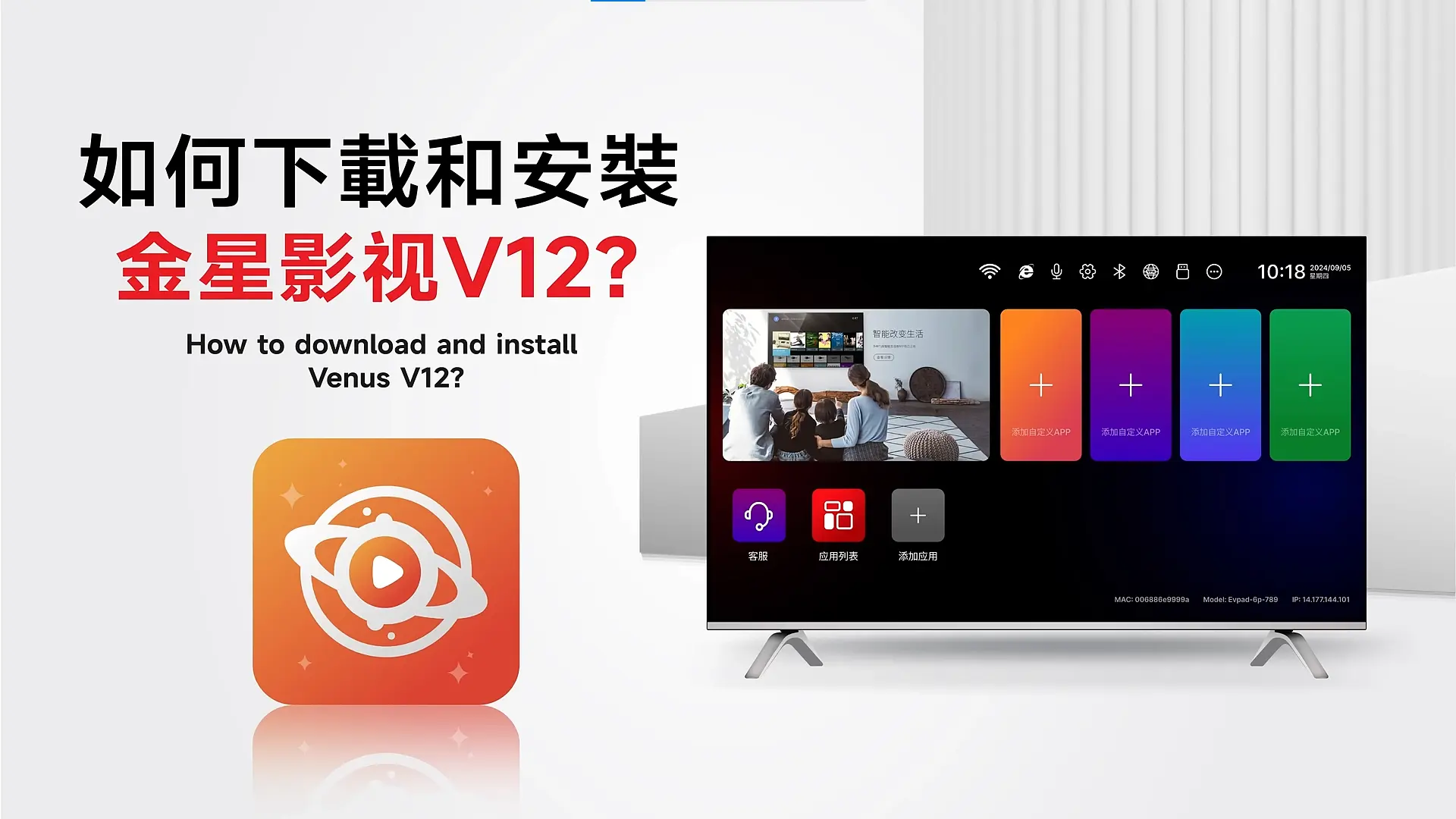
Which EVPAD Models Support Venus V12?
Venus V12 is designed for the EVPAD 12 series, including EVPAD 12P and EVPAD 12S. If you are using either of these models, you can follow the installation steps in this guide to install or reinstall Venus V12.
If you have an older EVPAD model, such as an EVPAD 10 or an earlier generation, do not install Venus V12 unless it is confirmed to be compatible with your device. Older models may use a different version of Venus, and installing an incompatible version can cause the app to fail to install, crash, or not open properly.
If you are unsure which EVPAD model you have, check the model information on your device or its packaging before continuing with the installation.
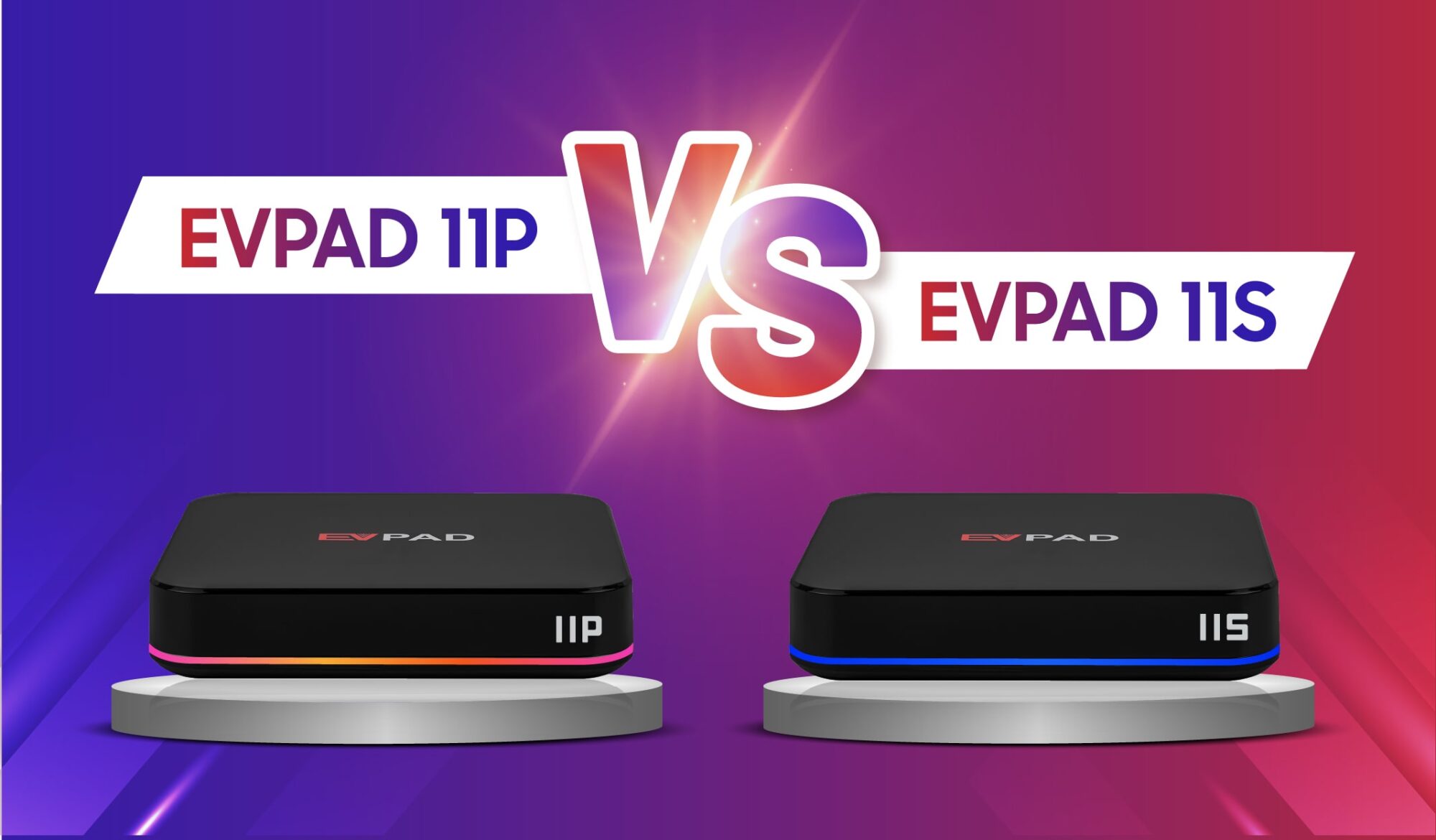
Discover the latest 12th-generation EVPAD models
How to Download and Install Venus V12 on EVPAD 12
You can download and install Venus V12 on EVPAD 12 directly through the browser on your device. Before starting, make sure your EVPAD 12P or 12S is connected to a stable internet connection.
Step 1: Open the Browser on Your EVPAD 12
From the EVPAD home screen, find and open the Browser. You will use the browser to access the EVPAD app download portal and locate Venus V12.

Step 2: Open the EVPAD Download Portal
In the browser address bar, enter 6868jx.net or 6868hx.net and open the download page.
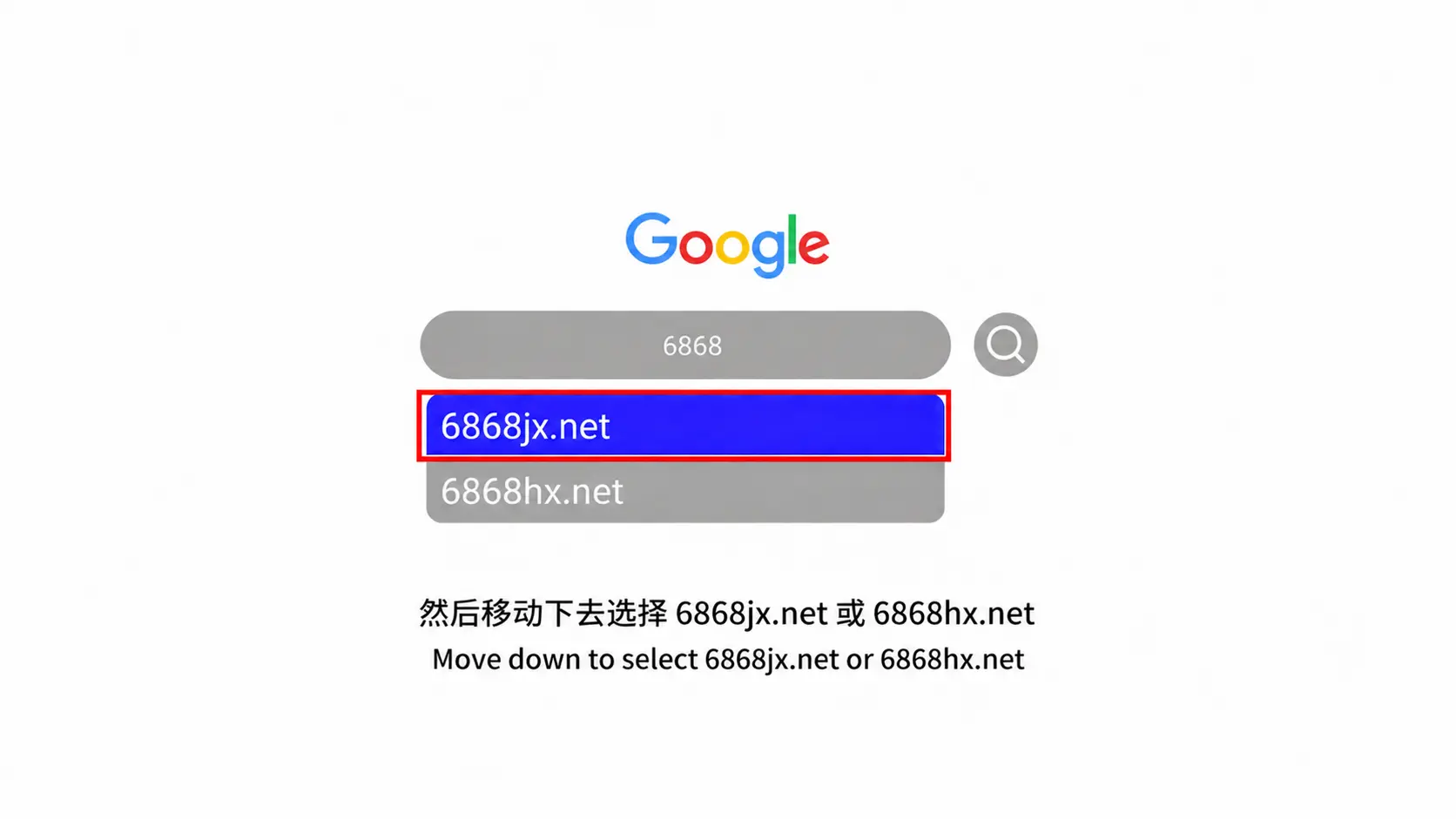
Once the page loads, look for the app section for your EVPAD model. Avoid downloading installation files from unknown third-party websites, as they may not provide the correct version for your device.
Step 3: Find Venus V12
On the download page, locate Venus V12 (JinXing Video v12). Make sure you select the version intended for the EVPAD 12 series before continuing.
If it does not appear on the page, refresh the page and confirm that your device is connected to the internet. You can also try the alternative download portal listed above.
Step 4: Download and Install
Select Venus V12 to start the download. When the installation prompt appears, choose Install or Confirm, depending on the system interface shown on your EVPAD 12.
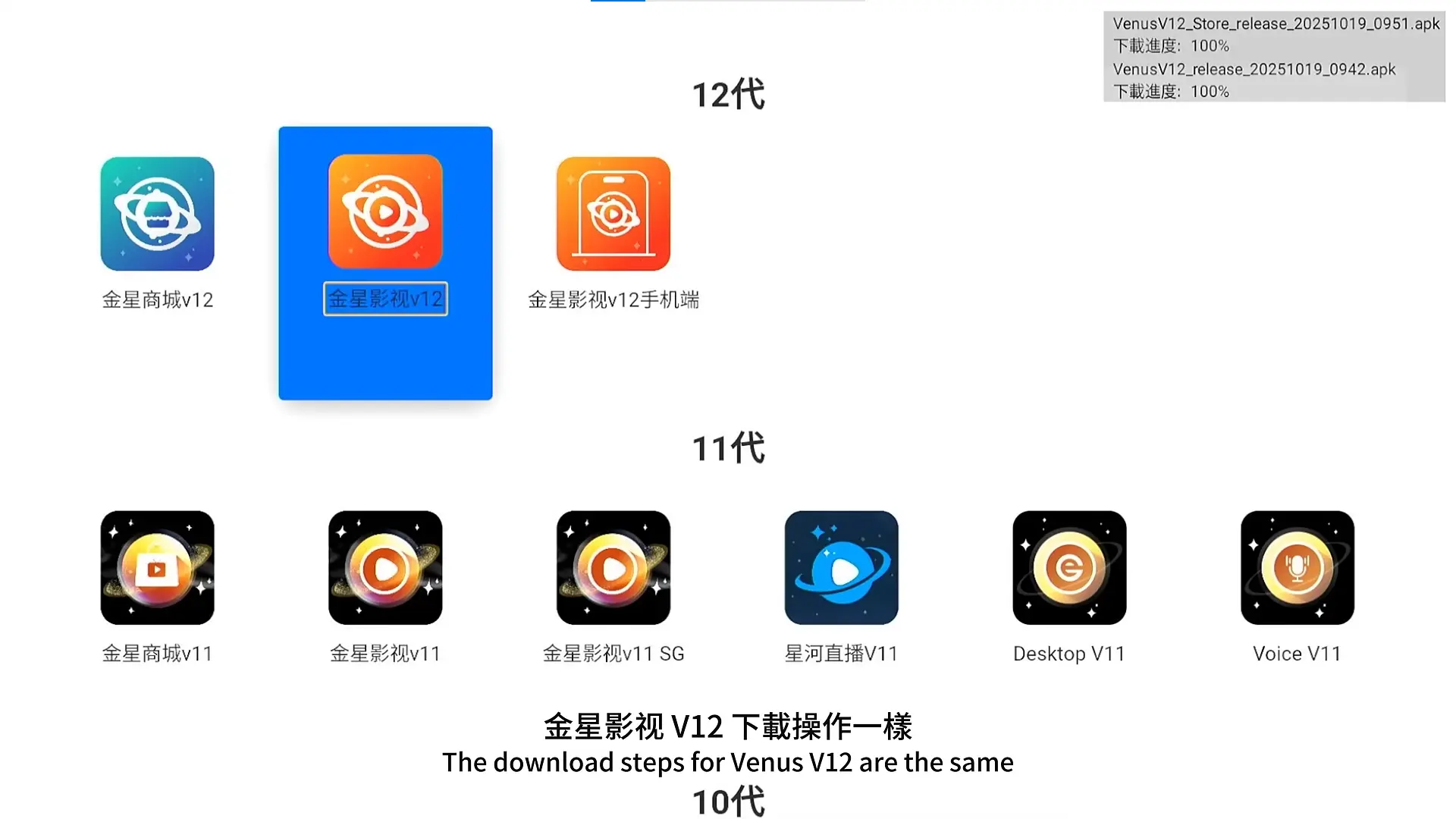
Wait for the installation to finish before leaving the screen or turning off the device. Once completed, the Venus V12 app icon should appear on your EVPAD.
Step 5: Open and Grant Permissions
Open Venus V12 after installation. If the app requests permissions when launched for the first time, review the prompts and allow the permissions required for the app to function properly.
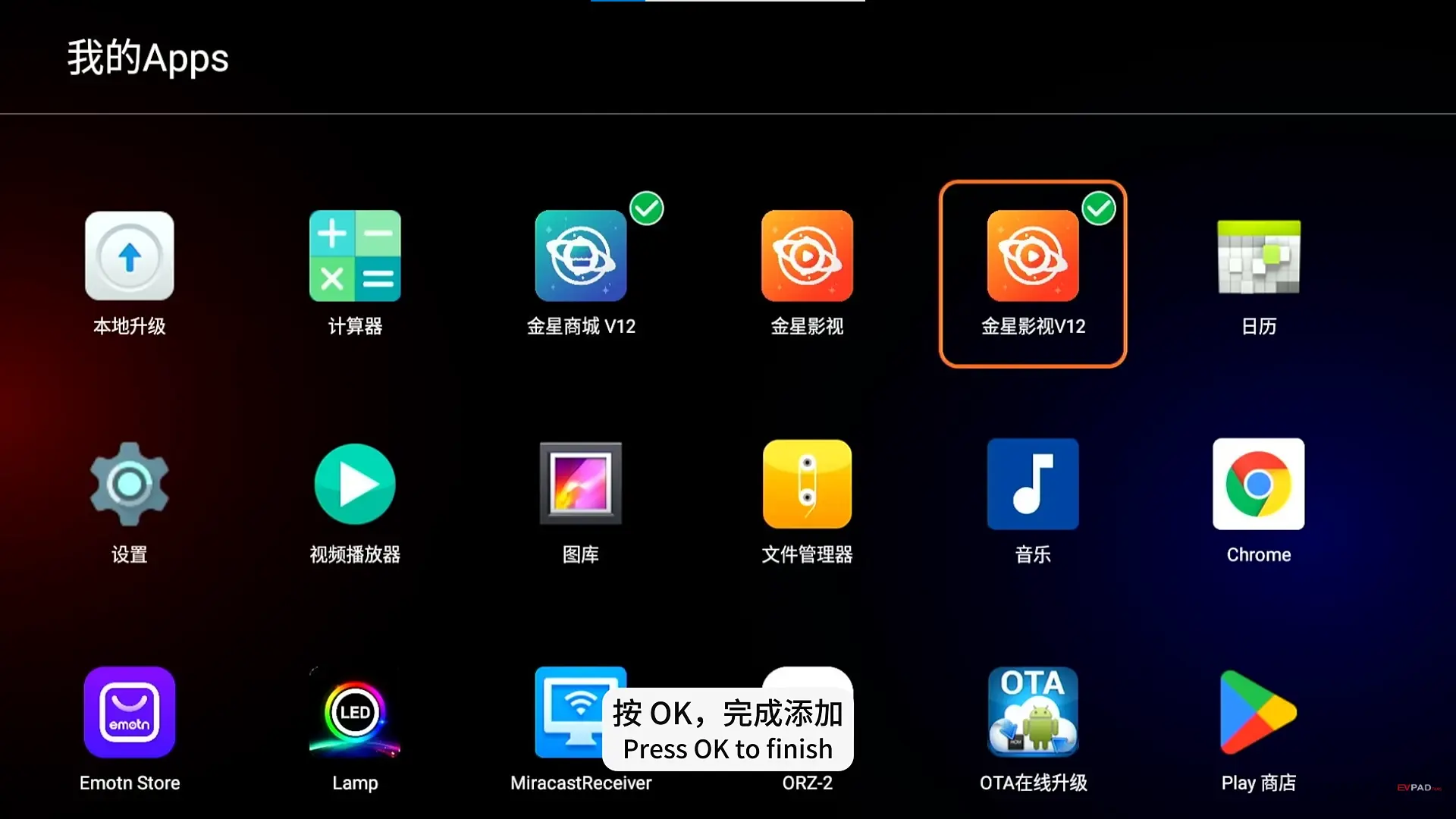
If it installs successfully but does not open, crashes, or the download page cannot be accessed, continue to the troubleshooting section below.
Installation and App Troubleshooting
If the app does not install or work properly on your EVPAD 12, the problem may be related to your network connection, an incomplete download, app permissions, or device compatibility. Try the solutions below based on the issue you are experiencing.
Installation Failed
If the installation fails or stops before completion, try the following:
- Make sure your EVPAD is connected to a stable internet connection.
- Restart the device and try the installation again.
- Clear the browser cache if the download repeatedly fails.
- Make sure you are installing the version intended for EVPAD 12P or 12S.
- If a previous installation is incomplete, remove it before reinstalling the app.
The Download Page Won’t Open
If 6868jx.net or 6868hx.net does not load in the browser, first check whether other websites can be opened normally. If they cannot, the issue is likely related to your internet connection.
If your connection is working, restart the browser, switch to another network, or try a mobile hotspot. You can also use the alternative download portal listed in the installation steps above.
The App Won’t Open After Installation
If the installation completes but the app does not open, restart your EVPAD and try launching it again. Also check whether any required permissions were denied when you first opened the app.
If the problem continues, uninstall the app and follow the installation steps above again. A fresh installation may resolve problems caused by an incomplete or corrupted installation.
The App Keeps Crashing or Freezing
If the app freezes, closes unexpectedly, or becomes unresponsive, restart your device and check that your internet connection is stable. Closing other apps running in the background may also help.
If the issue continues after restarting, reinstall the app and make sure you are using the version intended for the EVPAD 12 series. For persistent problems, contact your seller or support provider and include your device model, app version, and a description of the error.
Frequently Asked Questions
Is it the same as JinXing Video v12?
Yes. JinXing Video v12 is another name used for the app covered in this guide. It is intended for the EVPAD 12 series.
Which EVPAD models are compatible?
The app is designed for EVPAD 12P and EVPAD 12S. Older generations may require a different version, so check compatibility before installation.
How do I install it on EVPAD 12?
Open the browser on your device, access 6868jx.net or 6868hx.net, and locate the version for the EVPAD 12 series. Then follow the on-screen instructions to complete the installation.
Can I install the APK manually?
If you are looking for a Venus V12 APK, we recommend using the browser-based method described in this guide instead of downloading installation files from unknown third-party websites. This reduces the risk of installing a version that is not intended for your device.
Why is the app missing from my EVPAD?
If you cannot find the app, first confirm that you are using a compatible EVPAD model. You can then access the download portal through the built-in browser and reinstall it by following the steps above.
Can I use it on an older EVPAD?
The version covered in this guide is intended for the EVPAD 12 series. Older models may use a different version, so installation is not recommended unless compatibility has been confirmed.
Conclusion
Installing the app on an EVPAD 12P or 12S only takes a few steps: open the built-in browser, access the download portal, select the correct version, and follow the on-screen instructions to complete the installation.
If you run into problems, check your internet connection, permissions, and device compatibility first. For most installation issues, restarting the device or performing a clean reinstall should be enough to get the app working again.
Contact Information
For support, recommendations, or to place an order, contact us directly by clicking the chat button on the bottom-left corner of the screen, or reach out via:
WhatsApp: +60 11-1180 6101
Email: customer@evpadsg.com