If your EVPAD 12 is displaying menus in a language you do not understand, you can change the system language directly from the device settings. This is especially useful if a newly purchased or recently reset EVPAD opens in Chinese, or if you simply want to switch the interface to English or another available language.
This guide shows you how to change the system language on EVPAD 12 step by step, including what to do if the interface is already in Chinese, how system language differs from subtitles or audio language, and how to troubleshoot the setting if it does not change correctly.
Quick note: Changing the EVPAD system language changes menus and system settings. It does not automatically change subtitle language, audio tracks, or keyboard input inside individual apps.
How to Change the System Language on EVPAD 12
The language setting is located inside the EVPAD 12 system preferences. Follow the steps below using your remote control.
Step 1: Open Settings
From the EVPAD 12 home screen, move to the Settings icon and press OK on the remote.

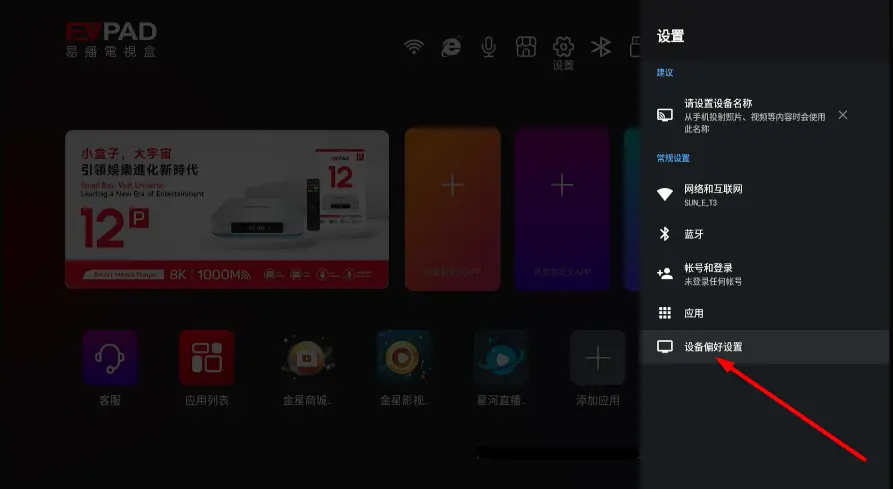
Step 2: Open Device Preferences
Inside the Settings menu, find and select Device Preferences. Depending on the software version, the wording or menu layout may vary slightly, but this is the section where system-level options are normally located.
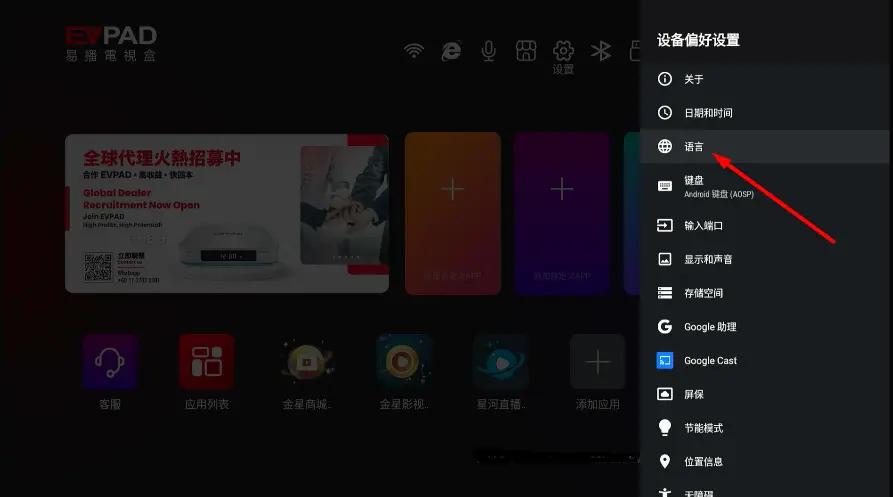
Step 3: Select Language
Scroll through Device Preferences and select Language.
Step 4: Choose English or Your Preferred Language
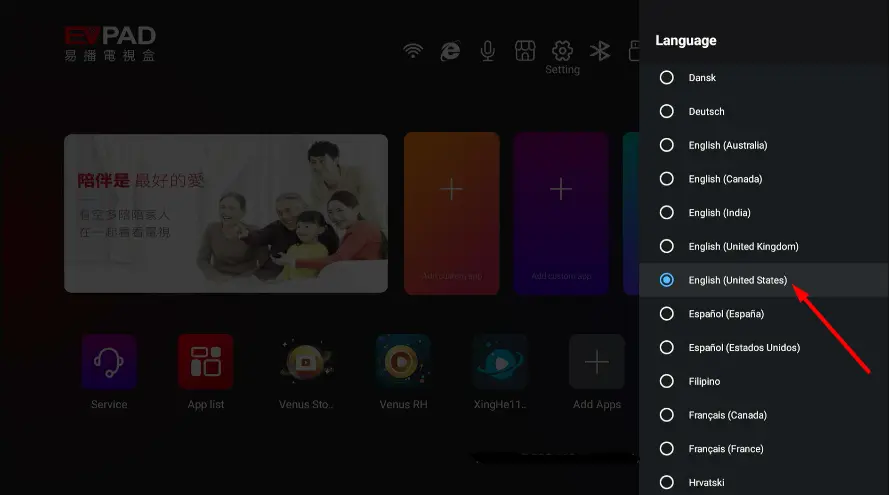
A list of available system languages will appear. Select English or another language that you prefer.
The exact language list can vary depending on the EVPAD firmware, regional version, and current system software, so use the options displayed on your device rather than relying on a fixed list.
Step 5: Return to the Home Screen
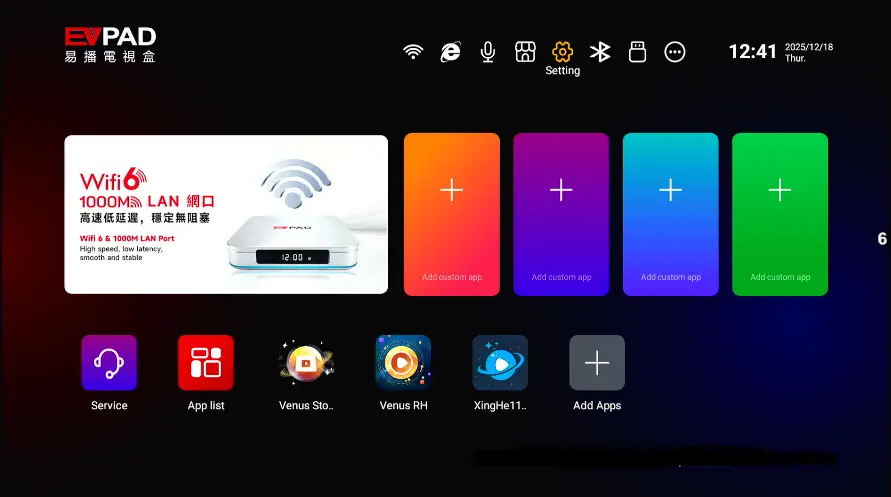
After selecting the new language, return to the EVPAD 12 home screen. The main system menus and settings should now appear in the selected language.
What If Your EVPAD 12 Is Already in Chinese?
If your EVPAD 12 opens in Chinese and you cannot read the menus, you can still change the language by following the same visual path shown in the screenshots above.
- Look for the gear-shaped Settings icon on the EVPAD home screen.
- Open the settings menu and locate Device Preferences by matching the menu position shown in the screenshots.
- Open the Language menu.
- Select English or another language you recognize.
You do not need to understand every menu item to complete the change. The icons and menu order can help you navigate until the interface switches to your preferred language.
Tip: If your screen looks slightly different from the screenshots, this may be due to a different EVPAD software version or regional firmware. Look for the Settings gear icon first, then locate the system or device preferences menu.
System Language vs Subtitles, Audio and Keyboard Language
Changing the EVPAD 12 system language only affects the device interface. It is separate from the language used inside videos, channels, subtitles, or text input.
For example, switching the EVPAD interface from Chinese to English does not necessarily change the subtitle or audio track of a movie. Those options are usually controlled inside the app or player you are using.
What to Do If the EVPAD Language Does Not Change
If you select a new language but the EVPAD 12 interface does not update correctly, try the following steps.
- Restart the EVPAD. A restart can refresh the system interface and apply the new language setting.
- Open the Language menu again. Confirm that your preferred language is still selected.
- Check whether only one app remains in another language. Some apps use their own language settings and may not follow the EVPAD system language automatically.
- Check for system updates. If settings are missing, menus behave unexpectedly, or the interface does not respond correctly, make sure your EVPAD software is current.
If you need help checking or updating the system, follow our guide on how to update an EVPAD TV box.
Important: If only a video app, subtitle menu, or individual content screen remains in another language, the issue may be app-specific rather than an EVPAD system-language problem.
Tips After Changing the EVPAD 12 Language
Changing the system language is generally a simple interface setting and should not affect your existing setup.
- Your installed apps remain on the device. Changing the system language does not normally uninstall applications.
- Your existing accounts and app data remain available. The change mainly affects system menus and interface labels.
- You can change the language again later. Return to Settings > Device Preferences > Language whenever you want to switch to another available option.
- Some apps may use separate language settings. If an app remains in another language, check that app’s own settings menu.
Once your EVPAD interface is set to a language you are comfortable with, you can continue setting up the device by following our guide on how to install apps on EVPAD.
Looking for the EVPAD 12P?
Explore the EVPAD 12P International Version with Android 12, Wi-Fi 6, 4GB RAM, 64GB storage, and multilingual system support.
Final Thoughts
To change the language on EVPAD 12, the basic path is simple: Settings > Device Preferences > Language. From there, choose English or another available language and return to the home screen to confirm the change.
If your EVPAD starts in Chinese, use the screenshots and Settings icon to navigate visually. If the system language changes but subtitles, audio, or an individual app remain in another language, adjust those settings separately inside the relevant app or player. For current EVPAD models and competitive pricing, visit EVPADSG for authentic EVPAD products in Singapore.