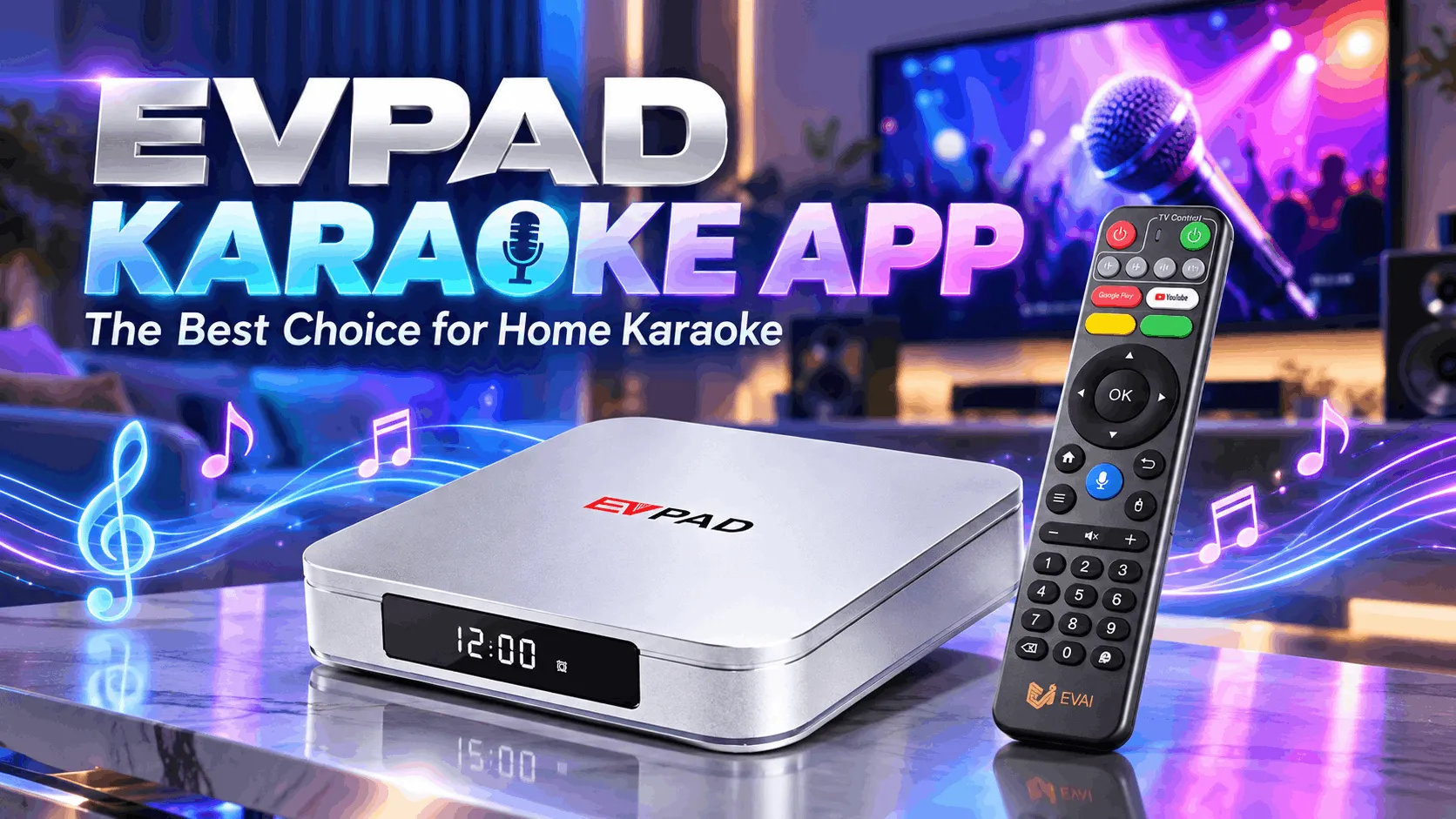
The EVPAD karaoke app gives users a simple way to enjoy home karaoke directly through an EVPAD TV box. With the right model, network connection, and microphone setup, you can search for songs, follow synchronized lyrics, switch between original vocals and accompaniment, and sing from your TV without using a separate karaoke machine.
This guide explains how the EVPAD KTV app works, which models support it, what equipment you need, how to install and use the app, and what to do if karaoke features are not working properly on your EVPAD 12P.
What Is the EVPAD Karaoke App?
The EVPAD karaoke app, also referred to as the KTV app, is designed to turn a compatible EVPAD TV box into a simple home karaoke system. Instead of using a separate karaoke machine, users can browse songs, play music videos, follow on-screen lyrics, and sing directly through their television setup.
Depending on the app version and EVPAD model, the KTV experience may include features such as:
- Song search and selection for Mandarin, Cantonese, English, and other music.
- Synchronized on-screen lyrics to follow while singing.
- Original vocal and accompaniment modes for different karaoke preferences.
- Favorites and song lists for quicker access to frequently played tracks.
- Large-screen playback through the TV connected to your EVPAD.
The exact features and song availability can vary by KTV app version, region, and EVPAD software version. Before installing the app, it is important to confirm that your EVPAD model is compatible.
Which EVPAD Models Support the KTV App?
KTV availability can vary by EVPAD model, software version, and app version. Before installing the karaoke app, check whether KTV appears in the app store or application center on your device.
If you are using an EVPAD 12P, check the device’s app store first. If the KTV app is listed and installs normally, your system version supports the available karaoke app. Avoid downloading an APK intended for a different EVPAD generation if the app is not available on your device.
What Do You Need for Karaoke on EVPAD?
To use karaoke on your EVPAD, you do not need a complicated setup, but you should have the basic equipment ready before launching the KTV app.
- A compatible EVPAD TV box: Use an EVPAD model that supports the current KTV app, such as a compatible EVPAD 12P or 11P system.
- A TV or display: Connect the EVPAD to your television through HDMI so that lyrics, music videos, and song menus can be displayed on the big screen.
- A stable internet connection: Karaoke apps may need internet access to load song libraries, search results, music videos, and other online content.
- A microphone: Depending on your setup, you can use a compatible wireless microphone system, USB microphone, or another microphone connected through supported audio equipment.
- Speakers or an audio system: Your TV speakers may be enough for casual use, but external speakers, a soundbar, or a karaoke amplifier can provide louder and clearer sound for home karaoke.
For the best experience, make sure the microphone and audio output are working correctly before opening the KTV app. If you are using a wireless microphone receiver or external sound system, complete that connection first so you can test the sound as soon as a song starts playing.
How to Install the KTV App on EVPAD
On EVPAD 12, the karaoke app can be installed directly through Jinxing Store V12. Make sure your EVPAD is connected to the internet before starting the installation.
- Open Jinxing Store V12. From the EVPAD 12 Home Screen, open Jinxing Store V12.
- Find the KTV app. Browse the available applications and locate the KTV app. Depending on the current software version, the app name or icon may look slightly different.
- Install the app. Select the KTV app and press OK on the remote control. Choose the installation option and wait for the download and installation process to complete.
- Open the KTV app. Once installation is complete, open the app directly from Jinxing Store V12 or find it in the EVPAD app list.
Important: Avoid closing Jinxing Store V12 or disconnecting the internet while the KTV app is being installed.
If the app does not appear after installation or will not open normally, continue to the troubleshooting section below.
How to Use the EVPAD KTV App
After installing the EVPAD KTV app, open it from the EVPAD app list or directly from Jinxing Store V12. The exact menu layout may vary slightly depending on the current app version.
- Open the KTV app. Launch the app and wait for the main karaoke interface to load.
- Browse or search for a song. Use the available categories, song lists, artist search, or search function to find the track you want to sing.
- Select the song. Highlight the song and press OK on the EVPAD remote to add it to the queue or start playback.
- Choose the singing mode. If available, switch between the original vocal and accompaniment versions depending on whether you want to hear the original singer.
- Follow the on-screen lyrics. The lyrics will appear on the TV while the song plays, allowing you to sing along in real time.
- Use your microphone and audio setup. Make sure your microphone, receiver, speakers, or karaoke audio system are already connected and producing sound correctly.
- Manage your song queue. Add more songs, skip a track, or select another song using the controls available inside the KTV app.
For casual home karaoke, the EVPAD remote is usually enough for browsing and selecting songs. If you use the KTV app regularly, preparing your microphone and audio system before launching the app will make the experience smoother.
Tip: If songs load but there is no microphone sound, the issue is usually related to the microphone or external audio setup rather than the KTV app itself.
EVPAD Karaoke App Not Working? Try These Fixes
If the EVPAD karaoke app is not working, the issue may come from the internet connection, app installation, model compatibility, storage space, or the external microphone and audio setup.
Important: Avoid installing random KTV APK files from other EVPAD generations if the app is missing or not working. Use the version provided through the app store for your current EVPAD system whenever possible.
Is EVPAD 12P a Good Choice for Home Karaoke?
If home karaoke is one of the features you want from your TV box, the EVPAD 12P is a practical option because the KTV app can be installed through Jinxing Store V12 on compatible software versions.
Beyond karaoke, the EVPAD 12P can also be used for live TV, VOD, movies, dramas, and other Android-based entertainment apps, making it suitable for households that want one device for both everyday viewing and occasional karaoke sessions.
It is especially suitable for users who want:
- Home karaoke through the TV without using a separate karaoke box.
- Access to the KTV app through Jinxing Store V12 on supported systems.
- A newer EVPAD platform for apps, streaming, and home entertainment.
- A flexible setup that can work with compatible microphones and external audio equipment.
If karaoke is an important part of your home entertainment setup, make sure your microphone and audio equipment are compatible with the connection method you plan to use.
Looking for an EVPAD 12P for home karaoke?
Choose the version that matches where you plan to use your EVPAD.
Final Thoughts
The EVPAD karaoke app gives compatible EVPAD users a convenient way to add karaoke to their home entertainment setup. On EVPAD 12, the KTV app can be installed through Jinxing Store V12, then used for song selection, lyrics, accompaniment, and large-screen karaoke playback.
For the best experience, confirm app compatibility first and prepare your microphone and audio setup before you start singing. If you are choosing a new EVPAD or need help selecting the right version, visit the official authorized EVPAD dealer in Singapore for genuine products, model recommendations, after-sales support, and competitive pricing.