Missed an important moment during a live TV broadcast? The EVPAD Timeshift function lets you pause, rewind, and revisit recent moments on supported channels. Whether you’re watching sports, news, or entertainment, this guide explains how Timeshift works, how to use it, and how it makes live TV viewing more convenient with an EVPAD TV box.
What Is the EVPAD Timeshift Function?
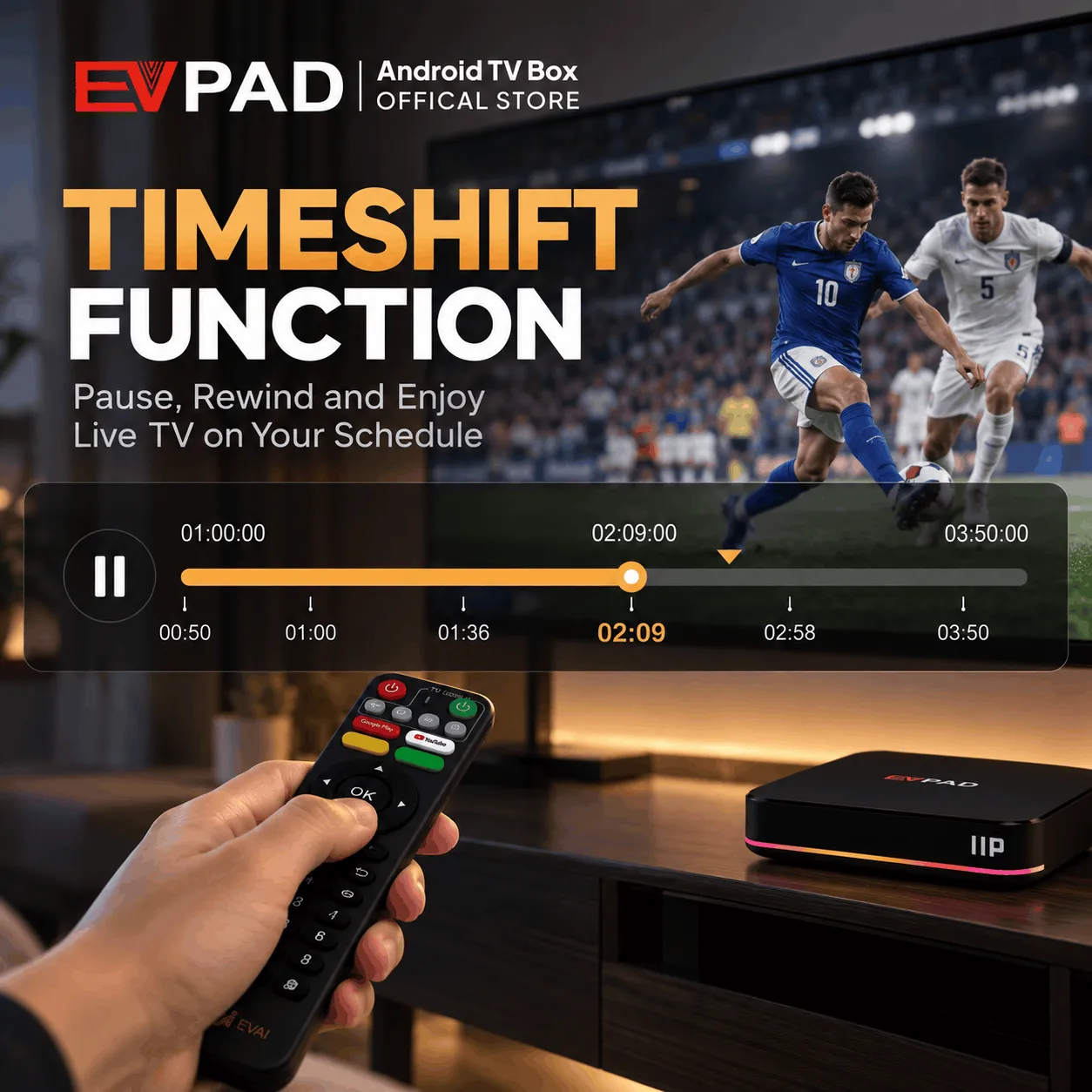
The EVPAD Timeshift function gives viewers greater flexibility when watching live television. Instead of following a broadcast without interruption, you can pause the program, rewind to an earlier moment, or continue watching from where you left off, provided the channel supports these controls.
For example, if you miss an important goal during a football match or need to step away during your favorite show, Timeshift lets you return to the moment you missed without waiting for the program to air again.
The feature works within a supported time window, which may vary depending on the channel and application. This means you can enjoy more control over live TV while still watching through your usual EVPAD interface.
How EVPAD Timeshift Differs from Traditional Live TV
Traditional live television follows a fixed broadcast schedule, meaning viewers generally have to watch programs as they air. EVPAD Timeshift adds flexibility by allowing users to control certain aspects of a live broadcast on supported channels.
| Feature | Traditional Live TV | EVPAD Timeshift |
|---|---|---|
| Pause live TV | Not typically available | Available on supported channels |
| Rewind a broadcast | Not typically available | Revisit earlier moments |
| Resume watching | Follows the live schedule | Continue from a paused moment when supported |
| Viewing flexibility | Limited by broadcast timing | More control over live viewing |
With Timeshift, you don’t have to follow every moment of a live broadcast in real time. It offers a more flexible way to enjoy television, especially when unexpected interruptions occur.
Key Benefits of the EVPAD Timeshift Function
Live television can be unpredictable, especially when your daily schedule doesn’t always match the broadcast. The EVPAD Timeshift function makes it easier to enjoy your favorite content without constantly worrying about missing an important moment.
Never Miss Important Sports Moments
For sports fans, even a few seconds can make a difference. A goal, penalty decision, or unexpected turning point can happen while you’re distracted.
With Timeshift on a supported channel, you can rewind to revisit the moment you missed. Whether you’re following football, basketball, or tennis, this feature allows you to take another look at important action without waiting for a highlight segment.
Pause Live TV During Everyday Interruptions
Imagine you’re halfway through an interesting program when someone rings the doorbell or you receive an important phone call. Instead of choosing between missing the show and handling the interruption, Timeshift can let you pause and continue watching afterward.
This is especially convenient for households where people regularly move between watching television and managing everyday activities.
Enjoy Entertainment at Your Own Pace
Timeshift can also improve the experience of watching variety shows, interviews, and news programs. If a conversation moves too quickly or you want to watch a memorable scene again, you can return to an earlier moment when the channel supports it.
For families, this additional flexibility makes it easier to enjoy live television without requiring everyone to remain in front of the screen throughout the entire broadcast.
How to Use the EVPAD Timeshift Function
Using the EVPAD Timeshift function is simple and requires just a few steps. Follow the instructions below to pause, rewind, and resume live TV on supported channels.
Step 1: Open Venus Live v11
From the EVPAD main screen, go to “Venus Live v11” → “Live Channels”. Select a channel that supports the Timeshift function and start watching.
Step 2: Pause the Live Broadcast
While watching a supported channel, press the “OK” button on your EVPAD remote to pause the live broadcast.
Step 3: Rewind or Fast Forward
Use the left and right arrow buttons on your remote to navigate backward or forward through the available Timeshift window. This allows you to revisit moments you missed or move ahead through previously viewed content.
Step 4: Resume Watching
Once you’ve found the moment you want to watch, use the available on-screen controls to resume viewing. You can also return to the current live broadcast when you’re ready.
Note: Timeshift is only available on supported channels. Remote-control functions may vary depending on the application version.
How Long Can You Use EVPAD Timeshift?
One of the notable features advertised for compatible EVPAD services is the ability to access a recent broadcast window of up to 8 hours.
This means that on supported channels, viewers may be able to rewind to content aired earlier within the available Timeshift period. For example, if you start watching a program later than planned, the function may allow you to return to a previous part of the broadcast rather than starting from the current live moment.
However, the full eight-hour window is not guaranteed on every channel. The actual duration may depend on the application, channel availability, and streaming service.
Timeshift is designed for controlling recent live broadcasts rather than permanently saving television programs. Once content falls outside the supported time window, it may no longer be accessible through this function.
Why Is EVPAD Timeshift Not Working?
If you cannot pause or rewind a live TV channel, the issue may be related to channel compatibility, internet connectivity, or the application itself. Checking a few common causes can help you determine why Timeshift isn’t available.
The Channel Does Not Support Timeshift
Not every live TV channel provides Timeshift functionality. If the controls are missing or unavailable, try switching to another channel known to support the feature.
If Timeshift works on other channels, the issue may be related to the original channel rather than your EVPAD device.
Internet Connection or Streaming Issues
A stable internet connection is important for using online live TV services. If your connection is slow or frequently disconnects, you may experience buffering or difficulty accessing earlier broadcast moments.
To check your connection:
- Confirm that your EVPAD TV box is connected to the internet.
- Try watching another live channel to check whether streaming works normally.
- Restart your router if the connection appears unstable.
- Reconnect your device and try Timeshift again.
If regular live TV works but Timeshift remains unavailable, the issue may be related to the channel or service rather than your internet connection.
Application or Device Issues
Temporary application errors can sometimes prevent the Timeshift controls from appearing or working properly.
Try closing and reopening the live TV application. If the issue continues, restart your EVPAD TV box and check whether an official application update is available.
If Timeshift still doesn’t work on several channels that normally support it, contact your EVPAD provider or support team for additional assistance.
Experience the Timeshift Function with EVPAD 11P
Interested in trying Timeshift for yourself? The EVPAD 11P Android TV Box is worth exploring if you’re considering a new device for your home entertainment setup. Take a closer look at its features and discover whether it’s the right choice for your viewing needs.
Explore EVPAD 11P
Discover the EVPAD 11P Android TV Box and its entertainment features.
Final Thoughts
The EVPAD Timeshift function makes live TV viewing more flexible by allowing you to pause, rewind, and revisit important moments on supported channels. Whether you’re watching sports, news, or entertainment, it helps you enjoy your favorite programs without being completely tied to the broadcast schedule.
With a better understanding of how Timeshift works and its channel limitations, you can make the most of this convenient feature in your everyday viewing experience.