If your EVPAD apps disappeared after a factory reset, stopped working, or keep crashing, reinstalling them is often the quickest way to get your device working normally again. For many EVPAD users, 6868jx is a familiar way to access and reinstall the apps they need.
In this 2026 guide, we’ll show you how to reinstall EVPAD apps via 6868jx, from removing a problematic app to downloading and installing it again on your EVPAD. EVPADsg will also cover what to do if 6868jx is not working after a reset, the installation fails, or an installed app won’t open.
Before you begin, make sure your EVPAD is connected to a stable internet connection. In most cases, you do not need to factory reset your EVPAD just to reinstall a single app.
What Is 6868jx on EVPAD?
6868jx is commonly used by EVPAD users to download and reinstall apps on their devices. It is especially useful when apps are missing after a factory reset, have been accidentally removed, or need to be reinstalled because they are not working properly.
To use 6868jx, simply open the Browser or ORZ browser on your EVPAD, access the 6868jx.net download page, and select the app you want to install. We’ll walk you through the complete process below.
When Should You Reinstall EVPAD Apps?
Reinstalling an EVPAD app can often fix problems caused by missing files, corrupted app data, or an incomplete installation. You may need to reinstall an app in the following situations:
- EVPAD Apps Are Missing After a Factory Reset: A factory reset may remove previously installed apps and restore your EVPAD to its default settings. If an app disappears after the reset, you can download and reinstall it through 6868jx.
- EVPAD Apps Keep Crashing or Freezing: If an app frequently crashes, freezes, or closes unexpectedly, some of its files may be corrupted. Uninstalling the app and installing a fresh copy can often resolve the problem.
- App Installation or Update Failed: If you see an “Installation Failed” message or an app stops working after an update, reinstalling it may help. Before reinstalling, make sure your EVPAD has enough storage space and a stable internet connection.
How to Uninstall Apps on EVPAD Before Reinstalling
Before reinstalling an EVPAD app, it is usually best to uninstall the existing version first. This helps remove corrupted files or app data that may be causing the problem.
Method 1: Uninstall from the EVPAD Home Screen
- From the EVPAD home screen, select More in the top-right corner.
- Select Uninstall.
- Choose the app you want to remove.
- Select Confirm to uninstall it.
Method 2: Uninstall from Settings
- Open Settings on your EVPAD.
- Go to Apps > View All Apps.
- Find and select the app you want to remove.
- Select Uninstall and confirm.
Do You Need to Factory Reset Your EVPAD?
No, a factory reset is usually not necessary just to reinstall an app. A factory reset removes user data, installed apps, and device settings, so it should only be considered when multiple apps or the EVPAD system are experiencing serious problems.
For a single problematic app, uninstall it using one of the methods above and then reinstall it through 6868jx.
How to Reinstall EVPAD Apps Using 6868jx
Once you have removed the problematic app, you can reinstall it through 6868jx. Follow the steps below to download and install the app on your EVPAD.
Step 1: Connect Your EVPAD to the Internet
Make sure your EVPAD is connected to a stable Wi-Fi or Ethernet connection before starting. A weak or interrupted connection may cause the download to fail.
Step 2: Open Browser or ORZ on EVPAD
From the EVPAD home screen, open Browser or ORZ. If you cannot find it on the home screen, check All Apps.
Step 3: Open the 6868jx Download Page
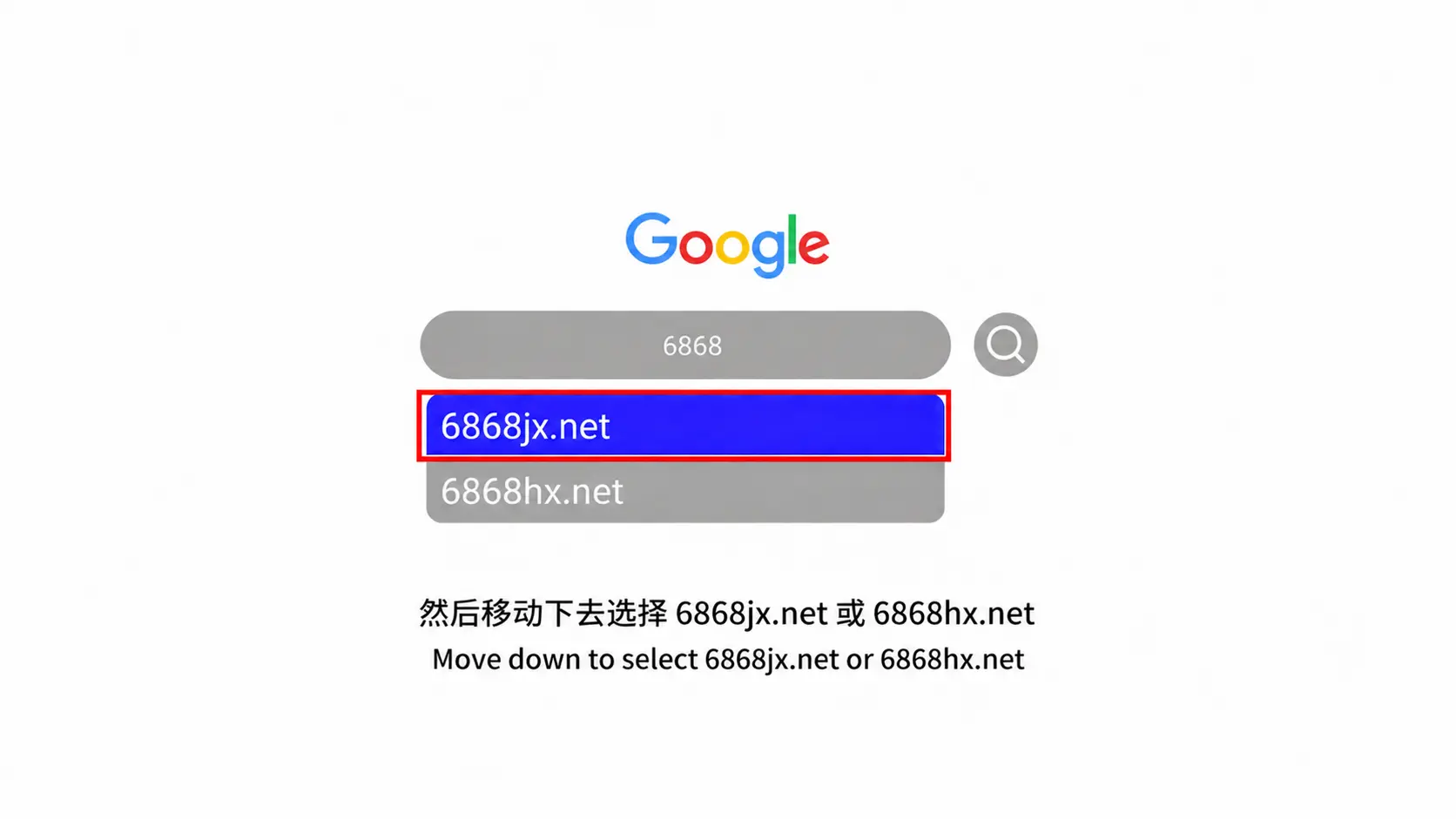
Enter the 6868jx.net address in the browser and open the download page. Make sure you are using the correct address before downloading any installation files.
Step 4: Select and Download the EVPAD App
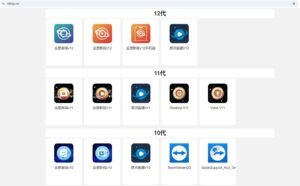
Find the app you want to reinstall and select the version compatible with your EVPAD model. Start the download and wait for it to finish before opening the installation file.
Step 5: Install the Downloaded App
Open the downloaded file and select Install. Follow the on-screen instructions to complete the installation. If EVPAD asks for permission to install the app, review the request and enable the required permission to continue.
Step 6: Grant the Required App Permissions
When you open the app for the first time, it may request permissions needed for certain features. Grant only the permissions required for the app to function properly.
Step 7: Open the App and Check That It Works
After installation, return to the EVPAD home screen and open the newly installed app. Check that it launches normally and works as expected.
6868jx Not Working on EVPAD? Try These Fixes
If 6868jx is not working on your EVPAD, the problem may be related to your internet connection, browser, storage space, or the installation file. Try the fixes below before performing a factory reset.
6868jx Won’t Open After a Factory Reset
If 6868jx does not open after resetting your EVPAD, first make sure the device is connected to the internet. Restart your EVPAD, open Browser or ORZ, and try accessing the 6868jx page again.
6868jx Page Won’t Load
If the 6868jx page does not load, check your Wi-Fi or Ethernet connection and confirm that other websites can open normally. You can also restart the browser or reboot your EVPAD before trying again.
EVPAD Shows “Installation Failed”
If the app downloads but EVPAD shows an “Installation Failed” message, check that your device has enough free storage and that the downloaded app is compatible with your EVPAD model. Delete the failed download and download the installation file again if necessary.
App Downloads but Won’t Install
If the download completes but the app will not install, remove any existing version of the app first and try the installation again. Also check whether EVPAD is requesting permission to install the downloaded file.
App Installed but Won’t Open
If the installation succeeds but the app crashes or does not open, restart your EVPAD and try again. If the problem continues, check the app permissions, uninstall the app, and reinstall a fresh copy through 6868jx.
Tip: Avoid performing another factory reset unless multiple apps or system functions are affected. Most download and installation problems can be resolved without resetting the entire EVPAD.
EVPAD Apps Missing After Factory Reset — How to Restore Them
If your EVPAD apps are missing after a factory reset, this is usually because the reset removed previously installed apps and restored the device to its default settings. You can reinstall the missing apps through 6868jx without resetting the device again.
To restore your EVPAD apps:
- Connect your EVPAD to a stable internet connection.
- Open Browser or ORZ from the home screen or All Apps.
- Access the 6868jx.net download page.
- Find the app you want to restore and select the version compatible with your EVPAD model.
- Download and install the app.
- Open the app and grant any required permissions.
- Restart your EVPAD if the restored app does not appear or open immediately.
If 6868jx does not load after the factory reset or the app fails to install, follow the troubleshooting steps above before attempting another reset.
6868jx and EVPAD App Download FAQ
What Is 6868jx Used for on EVPAD?
6868jx is commonly used by EVPAD users to access, download, and reinstall apps. It can be especially useful when an app is missing after a factory reset, has been accidentally removed, or needs to be reinstalled because it is not working properly.
How Do I Download EVPAD Apps Using 6868jx?
Open Browser or ORZ on your EVPAD and access the appropriate 6868jx download page. Find the app you need, select a version compatible with your EVPAD model, download the installation file, and follow the on-screen instructions to install it.
How Do I Reinstall the EVPAD App Store?
If the EVPAD App Store is missing or no longer works, you can reinstall it using the same process as other EVPAD apps. Open Browser or ORZ, access the appropriate 6868jx download page, locate the required app, and complete the installation.
Why Is 6868jx Not Working After Resetting My EVPAD?
After a factory reset, check that your EVPAD is connected to the internet and that Browser or ORZ can open websites normally. If 6868jx still does not load, restart your EVPAD and browser, then try again. Avoid performing another factory reset unless the device has broader system problems.
Can I Reinstall EVPAD Apps Without a Factory Reset?
Yes. In most cases, you do not need to factory reset your EVPAD to reinstall an app. Uninstall the problematic app, download a fresh copy through 6868jx, and install it again. A factory reset should generally be reserved for more serious device-wide problems.
Why Does My EVPAD App Say “Installation Failed”?
An installation may fail because of insufficient storage, an incomplete or corrupted download, or an incompatible app version. Check your available storage, make sure you selected the correct version for your EVPAD model, and download the installation file again if necessary.
Conclusion
Reinstalling EVPAD apps through 6868jx is a straightforward way to restore missing or problematic apps without resetting the entire device. In most cases, you only need to open Browser or ORZ, access 6868jx, download the appropriate app, and complete the installation.
If an app is still not working after reinstallation, check your internet connection, available storage, app compatibility, and permissions before considering a factory reset.
Need Help with Your EVPAD?
If you still have trouble downloading or reinstalling EVPAD apps, contact us for assistance:
- WhatsApp: +60 11-1180 6101
- Email: customer@evpadsg.com
Looking for a newer EVPAD model? Visit our EVPAD Shop.