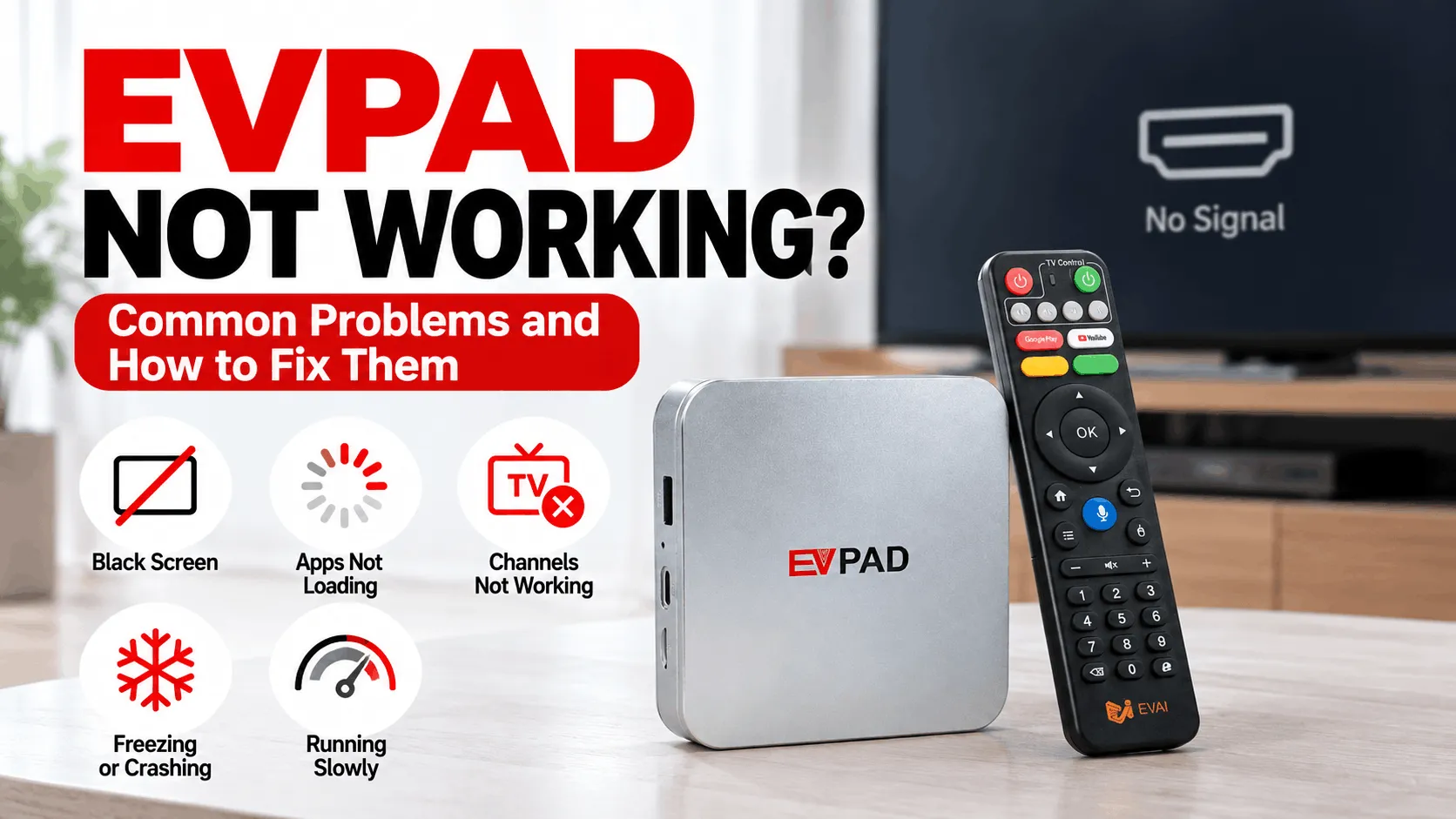
If your EVPAD is not working, the problem may be caused by something simple such as a loose HDMI connection, network issue, app error, or temporary system glitch. In other cases, especially with older models, the issue may come from outdated software or hardware limitations.
This guide walks you through the most common EVPAD problems and troubleshooting steps, including black screens, apps or channels not loading, freezing, crashing and issues affecting older models such as the EVPAD Pro 4K.
EVPAD Not Working? Start With These Quick Checks
If your EVPAD is not working, start with a few basic checks before changing system settings or reinstalling apps. Many common problems are caused by power, HDMI, internet, or temporary software issues.
- Check the power connection. Make sure the power adapter and cable are connected securely and that the EVPAD shows signs of powering on.
- Check the HDMI connection. Confirm that the HDMI cable is firmly connected to both the EVPAD and your TV, then select the correct HDMI input on the television.
- Restart the EVPAD. Power the device off, wait for about 30 seconds, then turn it back on. A restart can clear temporary system or app errors.
- Check your internet connection. Open another app or network function to confirm that the EVPAD is connected to Wi-Fi or Ethernet and that the internet is working normally.
- Check whether the problem affects one app or the whole box. If only one app or channel is not working, the issue may be specific to that service. If multiple apps and system functions fail at the same time, the problem may be related to the network or the EVPAD itself.
Tip: Avoid factory resetting the device or installing random firmware as a first step. Identify whether the problem is related to the display, network, apps, or overall system before attempting more advanced troubleshooting.
EVPAD Turns On but Shows No Picture or Black Screen
If your EVPAD powers on but the TV shows No Signal, a black screen, or no picture, the issue is usually related to the HDMI connection, TV input source, display output, or a temporary startup problem.
- Check the HDMI cable. Make sure the cable is connected firmly to both the EVPAD and the TV. If possible, unplug and reconnect both ends.
- Select the correct HDMI input. Use your TV remote to switch between HDMI 1, HDMI 2, or other available inputs until the EVPAD screen appears.
- Try another HDMI port or cable. A faulty HDMI port or damaged cable can cause a black screen even when the EVPAD itself is powered on.
- Restart both devices. Turn off the EVPAD and TV, wait about 30 seconds, then power the TV on first and restart the EVPAD.
- Check whether the EVPAD completes startup. If the box remains stuck during boot or the screen appears briefly and then goes black, the issue may be related to the system rather than the HDMI connection.
If another HDMI device works normally on the same TV and cable but the EVPAD still shows no picture, the problem may be coming from the EVPAD hardware or software. In that case, continue with the troubleshooting steps below before considering a factory reset or firmware change.
EVPAD Apps or TV Channels Are Not Loading
If your EVPAD turns on normally but apps or TV channels are not loading, the problem is more likely related to the internet connection, a specific app, or the service itself rather than the TV box hardware.
- Check the internet connection. Open another app or network function to confirm that your EVPAD is connected to Wi-Fi or Ethernet and that the internet is working normally.
- Restart the affected app. Close the app completely and open it again. Temporary loading errors can sometimes be resolved without restarting the whole device.
- Restart the EVPAD. If several apps or channels stop loading at the same time, restart the box and reconnect to the network.
- Check whether the issue affects one app or multiple services. If only one app is affected, the problem may be specific to that app. If multiple apps fail at once, check the network connection or system status first.
- Check app compatibility. On older EVPAD models, newer app versions may no longer work correctly with the installed Android version.
If only certain channels fail while other content works normally, the issue may be temporary or limited to that channel source. Avoid repeatedly reinstalling the entire system when the rest of the EVPAD is still functioning normally.
For older models, recurring app and channel-loading problems can also be a sign that the device is reaching its software compatibility limit.
EVPAD Keeps Freezing, Crashing, or Running Slowly
If your EVPAD keeps freezing, crashing, or responding slowly, the problem may be related to limited storage, too many background apps, temporary system errors, or aging hardware.
- Restart the EVPAD. A full restart can clear temporary processes and memory usage that may be slowing the device down.
- Free up storage space. Remove apps or files you no longer use, especially if the device storage is nearly full.
- Close unnecessary apps. Running multiple apps in the background can reduce available memory and cause slower performance.
- Check whether one app is causing the problem. If freezing or crashing happens only when using a specific app, the issue may be related to that app rather than the whole EVPAD system.
- Check software compatibility. Older EVPAD models may struggle with newer apps that require more processing power, memory, or a newer Android version.
If the device remains slow even after restarting, freeing storage, and reducing background apps, the limitation may come from the EVPAD’s older hardware rather than a temporary software issue.
Frequent freezing or crashing across multiple apps is also a sign that the device may be reaching the practical performance limit of its generation.
Why Older EVPAD Models Like the Pro 4K May Stop Working
Older EVPAD models such as the EVPAD Pro 4K can develop compatibility problems even when the hardware itself is not completely broken. As apps, streaming services, and Android requirements change, older devices may no longer support the software they once used reliably.
Common reasons include:
- Older Android versions: Newer apps may require a more recent Android version than the device can support.
- Limited software support: Older generations may receive fewer system updates or no longer support the latest app versions.
- Aging hardware: Older processors and limited memory can struggle with newer apps, higher-resolution video, and more demanding interfaces.
- App compatibility changes: An app that worked previously may stop opening, loading channels, or running smoothly after a newer release.
- Storage and performance limits: As the system fills with apps, cache, and files, older devices can become increasingly slow or unstable.
This is why an EVPAD Pro 4K may still power on normally while apps, channels, or newer features no longer work as expected. In this situation, repeatedly reinstalling apps or trying incompatible firmware may not solve the underlying limitation.
If basic troubleshooting no longer restores reliable everyday use, it may be time to consider whether upgrading is more practical than continuing to troubleshoot an older device.
When Should You Stop Troubleshooting and Upgrade?
If your EVPAD continues to have problems after basic troubleshooting, the issue may no longer be a simple software or connection error. On older models, repeated failures can indicate that the device has reached the practical limit of its hardware or software compatibility.
It may be time to upgrade if:
- Your EVPAD can no longer install or run the apps you need.
- Multiple apps frequently freeze, crash, or fail to load.
- The Android version is too old for newer app releases.
- The device remains slow even after restarting and freeing storage.
- Compatible updates or software support are no longer available for your model.
In these cases, replacing the device can be more practical than repeatedly reinstalling apps or trying unsupported fixes.
Ready to upgrade from an older EVPAD?
The EVPAD 12S International offers newer hardware and software compatibility for everyday streaming and entertainment.
Final Thoughts
If your EVPAD is not working, start by identifying whether the problem comes from the display connection, internet, a specific app, or the overall system. Many common issues can be resolved without replacing the device.
However, if an older EVPAD continues to experience compatibility problems, crashes, or poor performance across multiple apps, upgrading may provide a more reliable long-term solution. For genuine EVPAD products, upgrade recommendations, after-sales support, and competitive pricing, visit the official authorized EVPAD dealer in Singapore.