
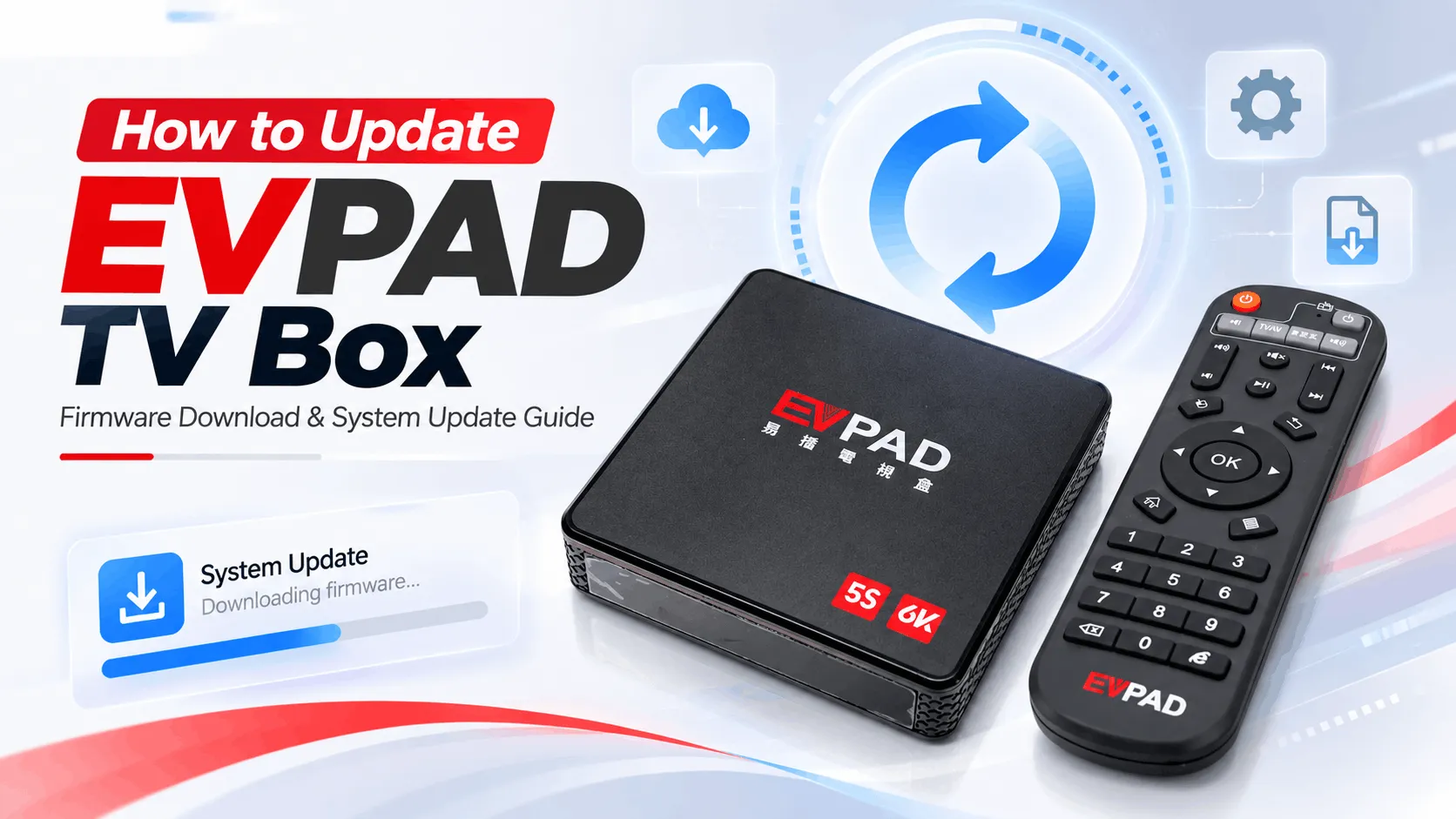
If you need to update EVPAD, the process will depend on your model and whether your device can update automatically or requires a manual firmware installation. Keeping the system up to date can help improve stability, compatibility, and overall performance.
This guide explains how to update your EVPAD TV box, download and install firmware manually when needed, check update options for older models such as the EVPAD 2S, 5S, 5P, and 6P, and troubleshoot common update problems.
How to Update Your EVPAD TV Box Automatically
For supported EVPAD models, the easiest way to update EVPAD is through the built-in online update function. Before starting, make sure your TV box is connected to a stable internet connection and has enough power to complete the update.
- Turn on your EVPAD TV box and connect it to the internet.
- Open Settings from the EVPAD home screen.
- Look for System Update, Online Update, or a similar update option, depending on your model and software version.
- Check for available updates. If a newer compatible version is found, follow the on-screen instructions to download and install it.
- Wait for the update to finish. Do not disconnect the power or restart the device while the installation is in progress.
After the update is complete, the EVPAD may restart automatically. Once it returns to the home screen, check that your apps, network connection, and remote control are working normally.
Tip: Menu names can vary between EVPAD generations. If your device does not show an online update option or reports that no update is available, your model may require a manual firmware update instead.
How to Download and Install EVPAD Firmware Manually
If your EVPAD does not offer an online update, you may need to install a compatible firmware file manually. This is more common with older models or devices that are no longer receiving updates through the built-in system.
- Confirm your exact EVPAD model. Check the model name on the device, packaging, or system information page before downloading any firmware.
- Download the correct EVPAD firmware. Only use a firmware package that is specifically compatible with your model and hardware version.
- Prepare a USB drive. Copy the firmware file to a USB drive using the file format and folder structure required for your EVPAD model.
- Connect the USB drive to your EVPAD. Open the system update or local update option, then select the firmware file if prompted.
- Start the installation. Follow the on-screen instructions and allow the update to complete without disconnecting the power.
- Restart and check the system. After installation, confirm that the EVPAD starts normally and that your apps, network connection, and remote control are working correctly.
Important: Do not install firmware from another EVPAD model, even if the model names look similar. Using an incompatible firmware file can cause installation errors or prevent the TV box from starting correctly.
If you cannot find a firmware version that clearly matches your device, it is safer to confirm compatibility before attempting a manual update.
Can Older EVPAD Models Still Be Updated?
Some older EVPAD models can still be updated, but the available method depends on the exact model, firmware version, and whether compatible update files are still available.
Older EVPAD models may not receive the same level of system support as newer generations. If your device no longer shows an online update and you cannot find a clearly compatible firmware package, avoid installing firmware intended for another model.
In that situation, the safest option is to confirm whether your model is still supported before attempting another update.
EVPAD Update Not Working? Try These Fixes
If your EVPAD update is not working, the issue may be related to the internet connection, firmware compatibility, storage space, or an interrupted installation. Try the checks below before attempting the update again.
Important: Do not disconnect the power while an update is installing. If your EVPAD still cannot update after these checks, the device may have reached the software support limit for its generation.
When Should You Upgrade an Older EVPAD?
If your older EVPAD no longer receives compatible system updates, struggles with newer apps, or continues to have performance problems after troubleshooting, upgrading may be more practical than repeatedly trying to install older firmware.
Common signs that it may be time to upgrade include:
- Your EVPAD no longer receives online system updates.
- Compatible firmware for your model is difficult to find.
- Newer apps no longer install or run properly.
- The device frequently freezes, restarts, or feels noticeably slower.
- You want newer connectivity and hardware features that older generations do not support.
For users ready to move to a newer generation, the EVPAD 12P offers updated hardware, newer connectivity features, and better long-term software compatibility.
Ready to upgrade your older EVPAD?
Choose the EVPAD 12P version that matches where you plan to use your device.
Final Thoughts
Keeping your EVPAD updated can help maintain system stability, app compatibility, and overall performance. For newer models, automatic updates are usually the easiest option, while older EVPAD devices may require a compatible manual firmware package.
If your EVPAD no longer receives updates or has reached its software compatibility limit, upgrading to a newer model may provide a better long-term experience. For genuine products, current model recommendations, and after-sales support, visit EVPADSG, an official authorized EVPAD dealer offering competitive pricing and local support.



Can u pls teach me how to update evapad2s+as i m unable to find any update button. Now i cant view vod live or any latest movie