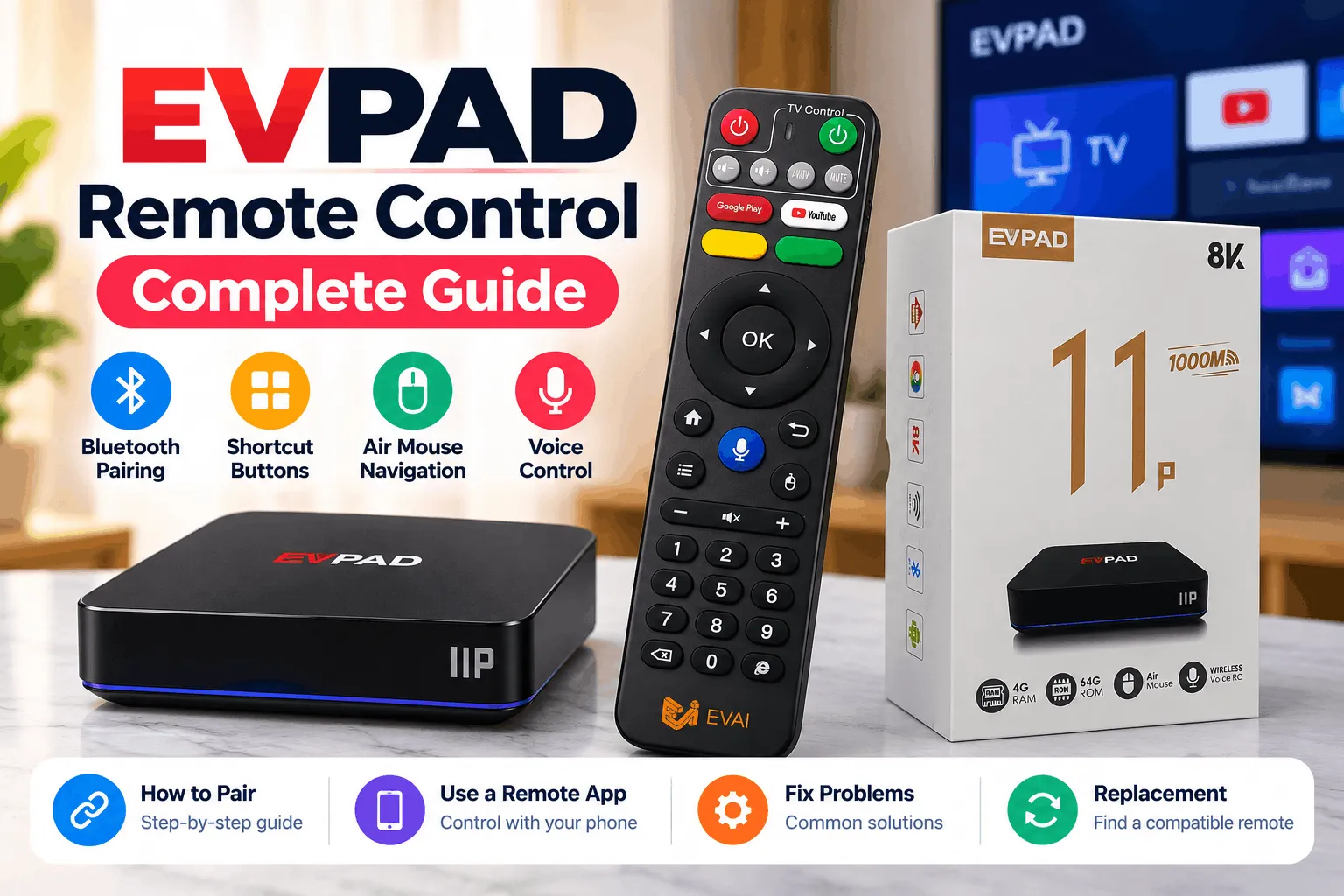
The EVPAD remote control is more than a basic TV box controller, with features such as Bluetooth connectivity, shortcut buttons, air mouse navigation, and voice control. This guide covers how to use and pair your EVPAD remote, control EVPAD with your phone, troubleshoot common remote problems, and find a replacement when needed.
EVPAD Remote Control Features
The EVPAD remote control combines Bluetooth connectivity with smart navigation features designed to make everyday TV box operation faster and easier. Key functions include customizable shortcut buttons, air mouse navigation, and voice control.
Bluetooth Control
The EVPAD remote connects via Bluetooth, so you do not need to point it directly at the TV box. Once paired, it provides stable wireless control and can automatically reconnect to the EVPAD box during normal use.
Custom Shortcut & Fast-Forward Buttons
Customizable shortcut buttons let you open frequently used apps with fewer steps. On supported EVPAD models, the yellow and green buttons can be assigned to selected apps, while the fast-forward button can also be configured as a quick-launch shortcut.
To set a custom shortcut:
- Open the EVPAD home screen and go to App List.
- Open SelectAPK.
- Select the shortcut button you want to customize.
- Choose the app you want to assign and confirm your selection.
Air Mouse Mode
Air Mouse mode displays an on-screen pointer that moves with the remote, allowing you to navigate EVPAD more like a computer mouse. It is particularly useful when browsing websites, selecting small icons, or using apps that are difficult to navigate with standard directional buttons.
Voice Control & Google Assistant
The microphone button allows you to use supported voice commands instead of typing with the on-screen keyboard. On compatible EVPAD models, Google Assistant can be used to search for content, open supported apps, and perform other voice-enabled actions.
How to Pair the EVPAD Remote Control
The EVPAD remote control pairing process connects the remote to your EVPAD TV box via Bluetooth. Once paired successfully, the remote should automatically reconnect during normal use.
- Turn on your EVPAD TV box and open Settings.
- Go to the Bluetooth or connected device settings and select Pair New Device.
- Activate Bluetooth pairing mode on the EVPAD remote.
- Wait for the remote to appear in the list of available devices.
- Select the remote and confirm the connection.
Tip: If the remote was previously paired but no longer connects, restart the EVPAD box and try the pairing process again. If the problem continues, follow the troubleshooting steps below.
EVPAD Remote Control App: Can You Control EVPAD with Your Phone?
If you cannot use your physical EVPAD remote control, you may be able to use a compatible Android TV remote app on your smartphone as a temporary alternative. Your phone and EVPAD box generally need to be connected to the same network for remote-control functions to work.
A phone remote can be useful for basic navigation, typing, and controlling the TV box when your EVPAD remote is lost, out of battery, or temporarily not working. However, app compatibility and available functions can vary by EVPAD model and software version, and some EVPAD-specific features may still require the original remote.
Tip: If your physical remote is available but simply disconnected, try pairing it again before relying on a remote control app.
EVPAD Remote Not Working? Try These Fixes
If your EVPAD remote is not working, the problem may be caused by the batteries, a lost Bluetooth connection, or a temporary issue with the TV box. Try these fixes before replacing the remote:
- Check the batteries: Replace the batteries with a fresh set and make sure they are installed in the correct direction.
- Restart the EVPAD box: Turn off the TV box, disconnect the power briefly, then reconnect it and test the remote again.
- Re-pair the remote: If the Bluetooth connection has been lost, follow the pairing steps above to reconnect the remote to your EVPAD.
- Test the buttons: Check whether the issue affects the entire remote or only specific buttons. If only one or two buttons are unresponsive, the problem may be with the remote itself.
- Check Air Mouse and voice control separately: If standard navigation works but Air Mouse or voice commands do not, make sure the remote is properly paired via Bluetooth and restart the feature before testing again.
If the EVPAD remote still does not respond after these steps, the remote may need to be replaced. You can also use a compatible phone remote app temporarily if your EVPAD model supports it.
EVPAD Remote Control Replacement
If your EVPAD remote control is lost, damaged, or still not working after troubleshooting, replacing it may be the most practical option. Before buying an EVPAD replacement remote, check that it is compatible with your specific EVPAD model and supports the functions you regularly use.
Pay particular attention to Bluetooth pairing, voice control, Air Mouse, and shortcut-button support, as these features may not be available on every replacement remote. A basic universal remote may handle simple navigation but may not support all EVPAD-specific functions.
When choosing a replacement, confirm the supported EVPAD models with the seller before ordering. If possible, choose a compatible EVPAD remote that provides the same key functions as your original controller.
EVPAD Remote Control FAQs
Does the EVPAD Remote Use Bluetooth or Infrared?
Newer EVPAD remotes use Bluetooth for wireless control, allowing you to operate the TV box without pointing the remote directly at it. Features such as voice control and Air Mouse also rely on a proper Bluetooth connection.
Can I Use an EVPAD Remote with Another EVPAD Box?
Compatibility can vary between EVPAD models and remote generations. Before pairing a remote with another EVPAD box, check that the remote is compatible with that specific model and supports the functions you need.
Can I Use a Universal Remote with EVPAD?
A compatible universal remote may work for basic functions such as navigation and selection. However, EVPAD-specific features such as voice control, Air Mouse, Bluetooth functions, and custom shortcut buttons may not be fully supported.
Why Does My EVPAD Remote Keep Disconnecting?
Repeated disconnections may be related to weak batteries, an unstable Bluetooth connection, or a temporary issue with the EVPAD box. Try replacing the batteries, restarting the box, and pairing the remote again. If the problem continues, the remote may need further troubleshooting or replacement.
Final Thoughts
The EVPAD remote control provides more than basic navigation, with features such as Bluetooth connectivity, customizable shortcuts, Air Mouse, and voice control. Understanding how these functions work can make everyday use of your EVPAD TV box easier.
If your remote stops working, start with simple checks such as replacing the batteries, restarting the EVPAD box, and pairing the remote again. If the problem cannot be resolved, consider a compatible replacement remote or a supported phone remote app as an alternative.
For more EVPAD products, setup information, and support, visit EVPAD Singapore to explore the latest options and guides.