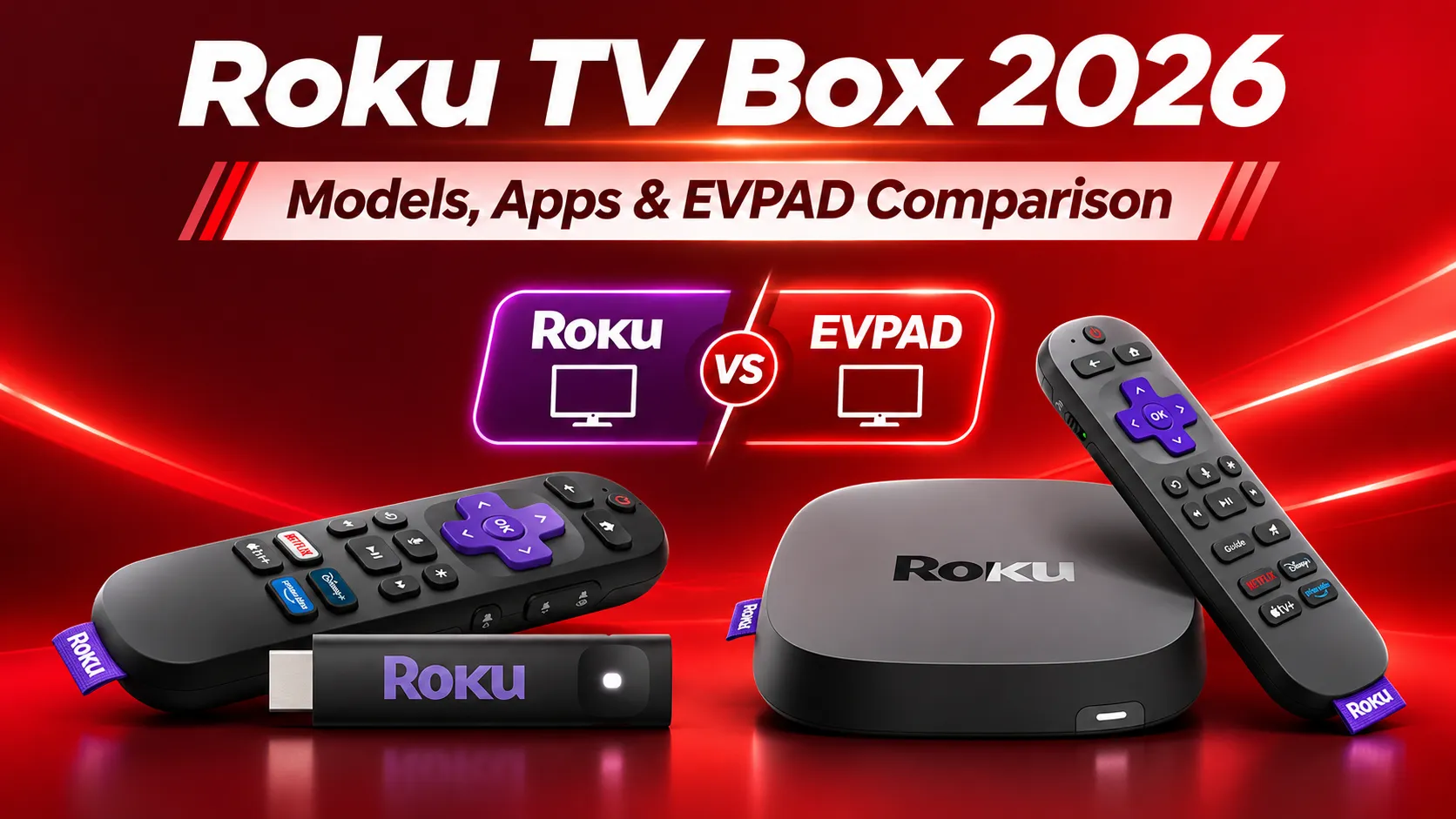
Looking for a Roku TV box to stream movies, live TV and sports in the US? Roku offers several streaming devices, from affordable Streaming Sticks to the premium Roku Ultra. Each provides access to popular entertainment apps, but picture quality, connectivity and pricing vary.
This 2026 guide compares Roku models, streaming apps, prices and setup. You’ll also learn how Roku Ultra compares with EVPAD 12P for Chinese-language and international entertainment.
What Roku TV Box Models Are Available in 2026?
Roku offers four main standalone streaming devices in the US: Streaming Stick (HD), Streaming Stick Plus, Streaming Stick 4K and Roku Ultra. All use Roku OS, but their features and prices differ. Unlike a Roku TV, which has Roku OS built in, these devices connect to your existing television through HDMI.
Roku Streaming Stick and Roku Ultra Compared
Here’s how the four Roku streaming devices compare in 2026.
Note: Prices are regular US list prices and may change during promotions. 4K and HDR features require compatible TVs and content.
Which Roku Streaming Device Should You Choose?
- Streaming Stick (HD): Best for 1080p TVs and budget-friendly everyday streaming.
- Streaming Stick Plus: A practical choice for 4K TV owners who want affordable HDR streaming.
- Streaming Stick 4K: Ideal for Dolby Vision TVs or setups needing stronger Wi-Fi reception.
- Roku Ultra: Best for users who want Ethernet, Wi-Fi 6, premium audio and an advanced rechargeable remote.
For most households, Streaming Stick Plus balances price and performance, while Roku Ultra offers more advanced features. To compare Roku with other brands, explore our guide to the best TV boxes in the USA.
What Can You Watch on a Roku TV Box?
Roku provides access to live TV, movies, sports and international entertainment through its streaming platform. You can watch free, ad-supported content or install subscription services such as Netflix, Disney+, Hulu and YouTube TV.
Free Live TV, Movies and Subscription Apps
The Roku Channel offers more than 500 free live TV channels in the US, including news, weather, sports programming and entertainment. It also provides free movies, TV shows and Roku Originals supported by advertising.
For additional content, Roku supports popular services including:
- Movies and series: Netflix, Disney+, Prime Video, Hulu and Apple TV.
- Live sports: ESPN, Peacock, Paramount+ and other supported sports services.
- Live TV: Sling TV, YouTube TV and Fubo for subscription-based channel packages.
Does Roku charge monthly fees? No. Roku devices and The Roku Channel do not require a Roku monthly subscription. However, premium streaming services and sports packages may charge separately. An internet connection is also required.
Can Roku Stream Chinese-Language and International Content?
Yes. Roku supports selected Asian entertainment apps in the US, including Rakuten Viki and iQIYI. These services offer Chinese dramas, Asian movies, variety shows and multilingual subtitles, although some titles require paid memberships.
However, Roku OS does not support direct installation of Android APK files. Users must rely on compatible apps available through the Roku Streaming Store, which can limit access to certain international services.
Roku is suitable for Chinese-language streaming when your preferred programs are available through supported apps. For broader Chinese-language live TV options, check channel availability and subscriptions before buying.
How to Set Up and Use a Roku Streaming Device
Setting up Roku Ultra or a Streaming Stick is straightforward. You need a television with HDMI, an internet connection and a free Roku account.
First-Time Setup and Roku Account Activation
- Connect Roku to your TV: Insert the Streaming Stick into an HDMI port or connect Roku Ultra using an HDMI cable. Plug in the power adapter and select the correct TV input.
- Set up the remote and internet: Prepare the remote, follow the pairing instructions and connect to Wi-Fi. Roku Ultra also supports wired Ethernet.
- Activate your Roku account: Follow the on-screen instructions, enter your email address and complete activation using Roku’s email link or QR code.
- Update and start streaming: Install available Roku OS updates, choose your preferred apps and sign in where required.
Important: Roku account creation and device activation are free. Avoid third-party websites asking for activation or support fees.
Installing Apps and Fixing Common Roku Problems
To add apps, press Home on your remote, open the Streaming Store, find your preferred service and select Add app. Some services require separate subscriptions.
If your device encounters problems, try these solutions:
- Buffering: Restart your router, check Settings > Network > Check connection, or use Ethernet with Roku Ultra.
- Apps not loading: Restart the app, check for updates or reinstall it.
- Remote not responding: Replace or recharge the batteries and follow the remote’s pairing procedure.
- Black screen or no picture: Check the HDMI input, power supply and cable connections.
For persistent issues, restart the Roku system and contact Roku Support. Use a factory reset only as a last resort, as it removes device settings and requires activation again.
Roku Ultra vs EVPAD 12P: Which TV Box Should You Buy?
Roku Ultra focuses on mainstream US streaming, premium picture quality and easy navigation. EVPAD 12P offers Android-based entertainment features aimed at overseas Chinese viewers, including international TV applications and karaoke.
Roku Ultra vs EVPAD 12P: Key Differences
Here’s a comparison of their main specifications, entertainment features and US pricing.
Note: Prices were checked in November 2026 and may change. Roku Ultra may be available at promotional prices. EVPAD specifications are based on its seller’s product listing.
Which Is Better for US Streaming and Chinese-Language Entertainment?
Choose Roku Ultra if you mainly watch Netflix, Hulu, Disney+, YouTube or other mainstream US services. Its intuitive interface, Dolby Vision, Dolby Atmos and Wi-Fi 6 make it suitable for premium home streaming. However, subscription services cost extra.
Consider EVPAD 12P if your household regularly watches Mandarin, Cantonese or other Asian-language entertainment. Its Android-based system supports compatible apps, while its entertainment features include international programming, KTV karaoke and time-shift viewing.
EVPAD 12P costs more upfront, but its seller advertises selected entertainment services without recurring subscription fees. Channel availability, service continuity and content rights should still be verified before purchase.
Overall, Roku Ultra is better suited to mainstream US streaming and premium audiovisual features. EVPAD 12P is worth considering for families prioritizing Chinese-language TV, international entertainment and karaoke.
Looking for More Chinese-Language & International Entertainment?
Explore the EVPAD 12P with 64GB storage, Chinese-language entertainment, international TV options and KTV karaoke.