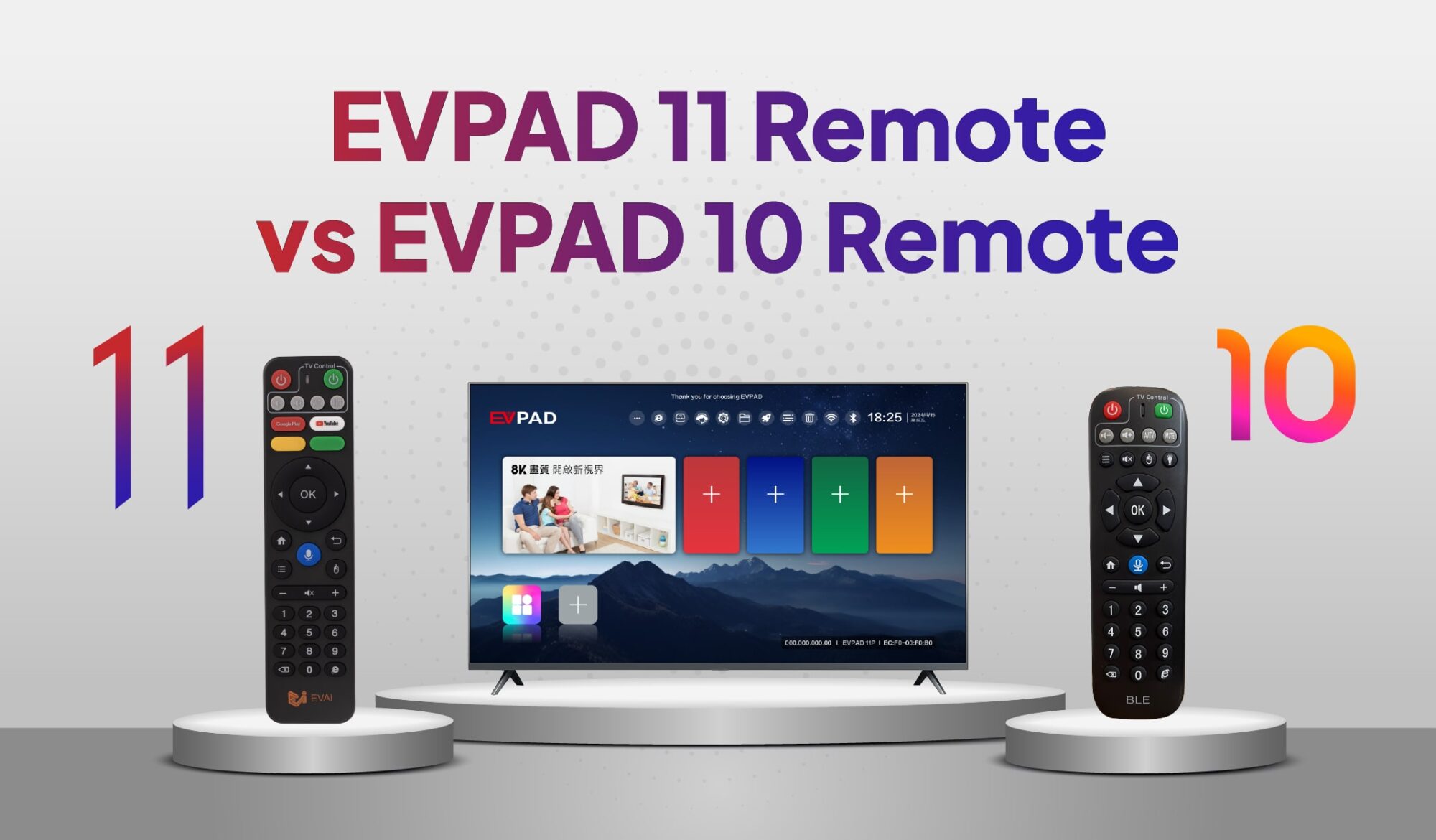
The EVPAD 11 remote vs EVPAD 10 remote comparison highlights how remote control features have evolved between two generations of EVPAD TV boxes. While both remotes support Bluetooth connectivity and essential navigation functions, the EVPAD 11 remote introduces additional shortcut buttons, customizable controls, and smart features designed to make everyday operation more convenient.
Whether you currently own an EVPAD 10 or are exploring the features of an EVPAD 11, understanding these differences can help you choose the remote control experience that best suits your needs. This guide compares their design, button layout, Bluetooth connectivity, Air Mouse functionality, voice control, and upgrade considerations.
EVPAD 11 vs EVPAD 10 Remote: Quick Comparison
The main difference between the EVPAD 10 and EVPAD 11 remotes is the range of convenient controls available. The EVPAD 10 remote focuses on essential TV box navigation, while the EVPAD 11 remote adds more ways to access applications and interact with the screen.
The following table summarizes their key differences.
| Feature | EVPAD 10 Remote | EVPAD 11 Remote |
|---|---|---|
| Design | Traditional remote design with essential navigation buttons | Updated design with additional function buttons |
| Bluetooth Connectivity | Supported | Supported |
| App Shortcut Buttons | Basic navigation and application access | Dedicated Google Play and YouTube shortcut buttons |
| Customizable Buttons | Limited compared with the newer design | Yellow and green customizable function buttons |
| Fast-Forward Shortcut | No equivalent dedicated customizable function described for the standard remote | Fast-Forward button can serve as an app shortcut on supported configurations |
| Air Mouse | Not included in the standard EVPAD 10 remote feature comparison | Air Mouse navigation supported |
| Voice Control | Limited voice functionality depending on the device configuration | Voice commands and Google Assistant on compatible configurations |
Key takeaway: The EVPAD 11 remote offers more convenient ways to launch applications, navigate interfaces, and use supported voice features. However, the importance of these improvements depends on how frequently you use advanced remote functions rather than basic navigation.
Note: Available functions can vary by remote model, device software, and supported applications. Check your specific EVPAD configuration before relying on a particular feature.
Design and Button Layout Differences
One of the most noticeable changes between the EVPAD 10 remote and EVPAD 11 remote is the arrangement of their buttons. Both follow a practical handheld design, but the newer remote includes additional controls intended to reduce the number of steps required for common tasks.
EVPAD 10 Remote: Basic Button Layout
The EVPAD 10 remote uses a traditional button arrangement centered around everyday TV box operation. Users can navigate menus, select content, return to the home screen, and perform other common actions using familiar remote buttons.
Its relatively straightforward layout makes it suitable for users who primarily watch entertainment content and prefer navigating applications through the standard directional controls.
However, compared with the newer EVPAD 11 remote, the standard EVPAD 10 remote offers fewer dedicated options for quickly launching frequently used applications.
What’s New on the EVPAD 11 Remote?
The EVPAD 11 remote control retains the familiar navigation layout while introducing additional buttons for convenient application access and personalized operation.
Notable additions include:
- Google Play shortcut: Provides convenient access to Google Play on supported device configurations.
- YouTube shortcut: Allows users to open YouTube more directly without navigating through the full application list.
- Yellow and green function buttons: Can be customized to open selected applications.
- Fast-Forward button: Can also function as an application shortcut when supported by the device software.
These additions are particularly useful for people who switch between several entertainment applications throughout the day.
For example, instead of repeatedly opening the app menu to find YouTube, a user can access it through a dedicated shortcut. Similarly, customizable buttons can provide convenient access to frequently used compatible applications.
The practical advantage of the EVPAD 11 remote is therefore not simply its updated appearance, but the additional flexibility it provides during everyday use.
Bluetooth Connectivity and Remote Pairing
Bluetooth connectivity is an important feature shared by both remote generations. Unlike traditional infrared-only remote controls, Bluetooth remotes do not require users to point directly at the TV box during normal operation.
Bluetooth Support on EVPAD 10 and 11
Both the EVPAD 10 and EVPAD 11 remotes support Bluetooth connectivity, allowing communication with their compatible TV boxes after successful pairing.
This provides several practical benefits:
- Flexible operation: Users do not need to aim the remote directly at the TV box for Bluetooth commands.
- Convenient navigation: The remote can remain responsive while users sit in different positions around the room.
- Wireless connectivity: Bluetooth communication provides a convenient alternative to conventional infrared-only control.
Because Bluetooth is already supported by both generations, it should not be considered an exclusive EVPAD 11 upgrade. The more meaningful differences involve the additional buttons and functions available on the newer remote.
How to Pair the EVPAD 11 Remote
If your EVPAD 11 remote needs to be paired with the TV box, the process can generally be completed through the device’s Bluetooth settings.
Follow these steps:
- Turn on your EVPAD 11 TV box and open the home screen.
- Navigate to Settings.
- Find the Bluetooth settings or select Pair New Device.
- Activate the remote’s Bluetooth pairing mode according to the instructions for your remote model.
- Select the detected remote control when it appears on the screen.
- Follow the on-screen instructions to complete the connection.
Once paired successfully, test the directional buttons and other available functions to confirm that the remote responds correctly.
Tip: If the remote does not appear during pairing, check the batteries, move closer to the TV box, and repeat the pairing process. Menu names and pairing-button combinations may vary depending on the remote and software version.
Custom Buttons and Shortcut Keys on EVPAD 11
Customizable buttons are among the most practical improvements introduced with the EVPAD 11 remote. Instead of relying entirely on the application menu, users can assign supported applications to selected buttons for faster access.
Yellow and Green Customizable Buttons
The EVPAD 11 remote includes yellow and green customizable function buttons. These buttons can be configured to launch compatible applications directly from the remote.
For example, users who frequently switch between YouTube, a browser, and other entertainment applications may find it convenient to assign their most-used apps to these buttons.
This feature can be particularly helpful for households where different family members prefer different applications.
Rather than searching through the application list every time, users can access an assigned app with fewer button presses.
How to Customize Remote Buttons Using SelectAPK
On EVPAD 11 configurations that include the SelectAPK utility, users can assign applications to supported shortcut buttons.
Steps to configure custom buttons:
- Open the EVPAD home screen and navigate to the App List.
- Find and launch the SelectAPK application.
- Select the function button you want to customize, such as the yellow or green button.
- Press OK to confirm your selection.
- Choose a compatible application from the available list.
- Save your settings and exit the application.
After completing the configuration, press the assigned button to check whether the selected application launches correctly.
Note: Shortcut configuration depends on the available system software and installed applications. If SelectAPK is not available, check your EVPAD software version or contact your seller for assistance.
Fast-Forward Button as an App Shortcut
Another useful feature of the EVPAD 11 remote is the ability to use the Fast-Forward button as an application shortcut on supported configurations.
Although the button may traditionally be associated with media playback controls, the supported shortcut function gives it an additional purpose.
For example, users can assign a frequently opened application to the button, allowing them to access it directly without navigating through multiple menus.
This extra flexibility is one of the features that distinguishes the EVPAD 11 remote from the standard EVPAD 10 remote design.
However, the availability of this function depends on the installed software and supported button-mapping options.
Air Mouse Mode: Easier Navigation on EVPAD 11
The EVPAD 11 remote Air Mouse feature provides an alternative to traditional directional-button navigation. It allows users to control an on-screen pointer by moving the remote, creating an experience similar to operating a computer mouse.
This can be useful when an application interface is difficult to navigate using only the directional keys.
How to Enable Air Mouse Mode
To use Air Mouse Mode on a supported EVPAD 11 remote:
- Turn on your EVPAD TV box and make sure the remote is connected.
- Locate the Mouse or Air Mouse function button on the remote.
- Activate the function using the button operation supported by your remote model.
- When the pointer appears on the TV screen, move the remote gently to control its position.
- Use the appropriate selection button to interact with on-screen elements.
Depending on the remote version, activating Air Mouse may require pressing or holding the designated button. Follow the instructions supplied with your specific device.
When Is Air Mouse Useful?
Air Mouse Mode can make certain everyday tasks more convenient, especially when applications are not optimized for traditional TV remote navigation.
- Web browsing: Move around webpages and select links without repeatedly pressing directional buttons.
- Small icons and menus: Position the pointer over interface elements that may be difficult to select using standard navigation.
- Application settings: Access buttons and controls within supported applications more conveniently.
- Text field selection: Move the pointer to search boxes or input fields before entering text.
Tip: Use smooth, controlled hand movements when navigating with Air Mouse. The experience may vary depending on the application interface and screen layout.
While the standard EVPAD 10 remote focuses on conventional navigation, Air Mouse provides EVPAD 11 users with an additional control method that may be useful in more complex interfaces.
Voice Control on EVPAD 11 Remote
Voice control is another feature worth considering when comparing the EVPAD 11 and EVPAD 10 remotes. On compatible EVPAD 11 configurations, users can access supported voice functions through the remote’s microphone button.
Instead of manually navigating through menus or typing every search term, users can speak commands to perform supported actions.
How to Use Voice Commands
Using voice control on a compatible EVPAD 11 device generally involves the following steps:
- Make sure the remote is paired with the EVPAD TV box.
- Confirm that the device has an active internet connection if the voice service requires one.
- Press the microphone button on the remote.
- Speak a supported command clearly, such as “Open YouTube.”
- Follow any response or instructions displayed on the screen.
Supported commands and available voice services may depend on the device software, selected language, and installed applications.
What Can You Control with Voice?
On supported configurations, voice control may help users perform tasks such as:
- Opening applications: Launch compatible applications using spoken commands.
- Searching for content: Search for videos or other supported entertainment content without typing each keyword.
- Accessing voice-enabled functions: Use Google Assistant features where available and supported by the device.
- Simplifying navigation: Reduce the need to enter long search terms using the on-screen keyboard.
These features may be especially convenient for users who prefer speaking search terms rather than typing with a remote control.
Important: Voice control is not completely hands-free because users generally need to activate the microphone function first. Language support, command recognition, and Google Assistant availability can vary by device configuration and service availability.
Is the EVPAD 11 Remote Worth Upgrading To?
After comparing their features, the main question is whether the additional functions of the EVPAD 11 remote offer enough practical value to justify an upgrade.
The answer depends on your viewing habits, preferred navigation method, and existing EVPAD device.
When the EVPAD 11 Remote Offers an Advantage
The EVPAD 11 remote may provide a more convenient experience for users who regularly interact with different applications and need flexible controls.
Its advantages are particularly relevant if you:
- Frequently switch between multiple entertainment applications.
- Prefer opening favorite apps through dedicated shortcut buttons.
- Want to customize remote functions based on your viewing preferences.
- Use a web browser or applications that benefit from pointer-based navigation.
- Prefer voice commands for supported searches and application controls.
For these users, customizable buttons and Air Mouse navigation can help reduce repetitive menu operations.
When the EVPAD 10 Remote Is Still Enough
Despite the additional features available on the EVPAD 11 remote, the EVPAD 10 remote remains practical for basic TV box operation.
If you primarily use a small number of applications and are comfortable navigating with the directional buttons, the existing remote may already meet your everyday needs.
Bluetooth connectivity is supported on both generations, so upgrading solely to avoid pointing the remote directly at the TV box may not provide a meaningful benefit.
Users who do not regularly use custom shortcuts, Air Mouse, or voice features may find little reason to change their current remote control.
Can You Use an EVPAD 11 Remote with EVPAD 10?
Before purchasing an EVPAD 11 remote as a replacement for an EVPAD 10 remote, it is important to check device compatibility.
Although both generations support Bluetooth, Bluetooth connectivity alone does not guarantee that an EVPAD 11 remote will work correctly with an EVPAD 10 TV box.
Compatibility may depend on the TV box model, remote firmware, Bluetooth pairing requirements, and available software functions.
Even if basic navigation works, advanced features such as customized shortcuts, Air Mouse, or voice control may require specific device support.
Users considering a separate remote replacement should confirm compatibility with their EVPAD seller before purchasing.
It is also important to distinguish between upgrading the remote control and upgrading the entire TV box. Additional remote buttons do not automatically provide the older TV box with the software capabilities of a newer EVPAD generation.
Frequently Asked Questions
Does the EVPAD 11 Remote Support Bluetooth?
Yes. The EVPAD 11 remote supports Bluetooth connectivity for wireless control of compatible EVPAD TV boxes. The EVPAD 10 remote also supports Bluetooth, so this is a shared feature rather than an entirely new addition to the EVPAD 11 generation.
How Do I Set Custom Buttons on the EVPAD 11 Remote?
On supported EVPAD 11 devices, open the App List and launch SelectAPK. Choose the yellow or green customizable button, select the application you want to assign, and save the configuration. Available options may vary depending on the installed software.
Does the EVPAD 11 Remote Have an Air Mouse?
Yes. The EVPAD 11 remote supports Air Mouse functionality, allowing users to navigate compatible interfaces with an on-screen pointer. Activate the designated Mouse or Air Mouse function and move the remote to control the cursor. The exact activation method may vary by remote model.
Can I Replace My EVPAD 10 Remote with an EVPAD 11 Remote?
Compatibility is not guaranteed simply because both remotes use Bluetooth. Before buying an EVPAD 11 remote for an EVPAD 10 TV box, confirm that the specific remote and device model support pairing and the functions you intend to use.
Final Thoughts
The EVPAD 11 remote vs EVPAD 10 remote comparison shows that the newer remote offers additional convenience through customizable shortcut keys, dedicated application buttons, Air Mouse navigation, and supported voice features.
However, the EVPAD 10 remote remains a practical option for users who prefer straightforward navigation and do not need additional smart functions. Whether an upgrade is worthwhile ultimately depends on your daily viewing habits and the compatibility of your existing device.
To learn more about available EVPAD models and smart TV box features, visit the EVPAD Android TV Box Official Store and explore the options that best suit your entertainment needs.