How to Change Language on EVPAD 12 – Step-by-Step Guide
EVPAD 12 supports multiple system languages, making it easy for users worldwide to operate the device in their preferred language. If you want to switch the default language to Chinese, English, Japanese, Korean, or other supported options, follow the simple guide below to change language on EVPAD 12.
When Should You Change the Language on EVPAD 12?
You may want to change the default language if:
-
The current interface is in Chinese or English and feels difficult to navigate
-
Your newly purchased EVPAD 12 is set to a language you’re not familiar with
-
You’re setting up the device for elderly users or children
-
You want a more comfortable and intuitive viewing experience for the whole family
How to Change the Default Language on EVPAD 12
Step 1: Open Settings
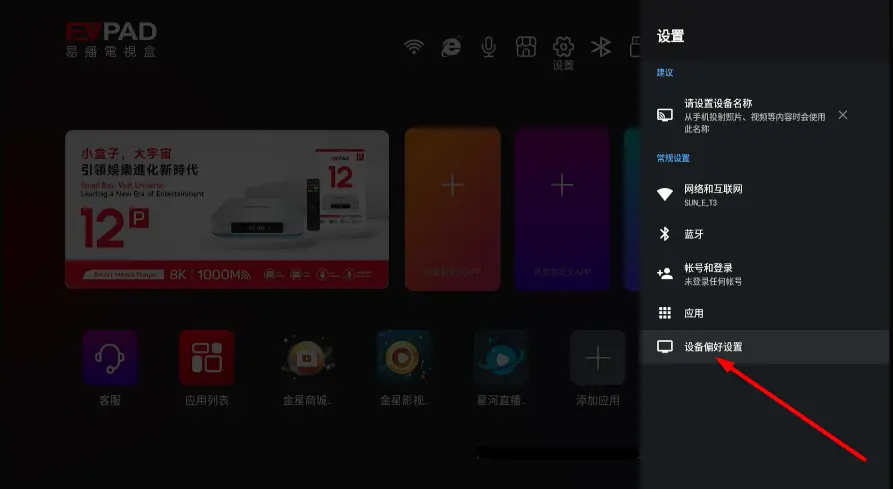
From the EVPAD 12 home screen, use the remote control to click the Settings icon.

Step 2: Enter Device Preferences
In the Settings menu, locate and select Device Preferences.
Step 3: Select Language
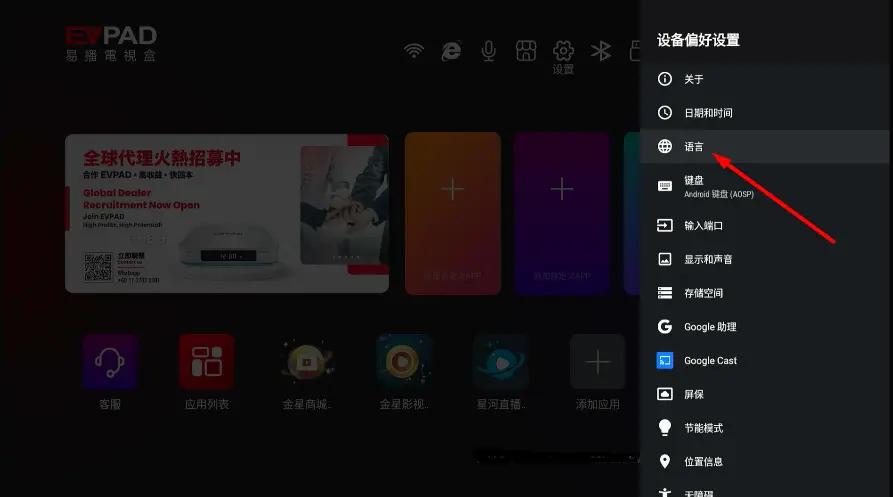
Tap on the Language option.
Step 4: Choose Your Preferred Language
A list of supported languages will appear. EVPAD 12 typically supports:
-
Chinese (Simplified / Traditional)
-
English
-
Vietnamese
-
Cantonese
-
Japanese
-
Korean
Simply select your desired language, and the system will switch instantly.
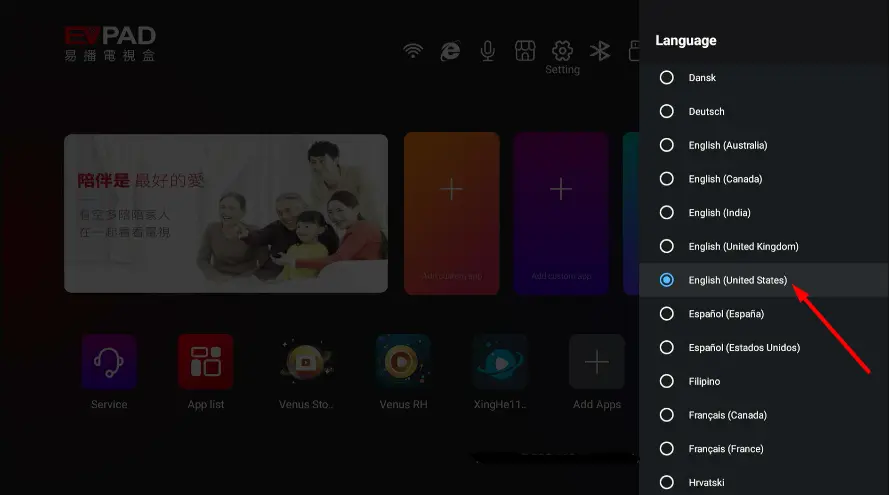
Step 5: Confirm the Display
Return to the home screen. All menus and system settings will now appear in the newly selected language.
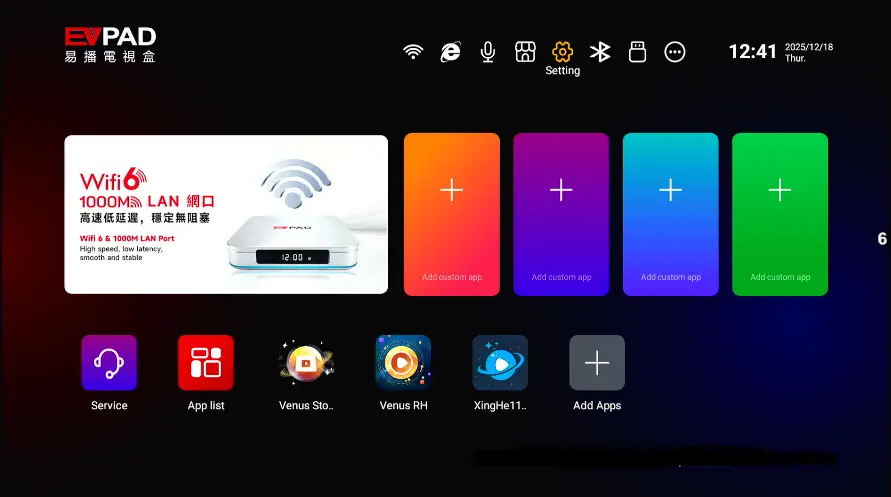
Tips & Notes When Changing the Language
-
Changing the language does not delete any data
-
Installed apps and accounts remain unaffected
-
You can change languages anytime without limitations
-
Works seamlessly with the voice remote control for faster navigation
-
Choose the right language so everyone in the household can use EVPAD 12 easily
Summary
Changing the default language on EVPAD 12 is quick and effortless, taking less than one minute. With just a few simple steps, you can customize the interface to match your language preference—making your entertainment experience smoother, clearer, and more enjoyable.
Tip: Set the language once, and enjoy hassle-free viewing every day 🎉
Contact Information
For support, recommendations, or to place an order, contact us directly by clicking the chat button on the bottom-left corner of the screen, or reach out via:
WhatsApp: +60 11-1180 6101
Email: customer@evpadsg.com
To purchase the latest EVPAD model, visit our shop:
https://evpadsg.com/shop/
To explore all our products, visit:
https://evpadsg.com/