How to Add Apps to the EVPAD Home Screen (Step-by-Step Guide)
EVPAD is a TV box loved by family users for its user-friendly interface and simple operation. One of its most practical features is the ability to add frequently used apps to the home screen, allowing you to open apps with just one click—without scrolling through a long app list.
This article explains how to add apps to the EVPAD home screen, with easy steps that work on the latest EVPAD models.
When Should You Add Apps to the EVPAD Home Screen?
You may want to add apps to the EVPAD home screen in the following situations:
-
To open apps faster and save time
-
To create a simpler, more intuitive interface for elderly family members
-
If you frequently use TV and streaming apps such as Venus TV, Venus Mall, YouTube, and more
-
To customize the EVPAD interface based on your personal viewing habits
How to Add Apps to the EVPAD Home Screen
Method 1: Add Apps via the “Add Custom App” Section
Step 1:
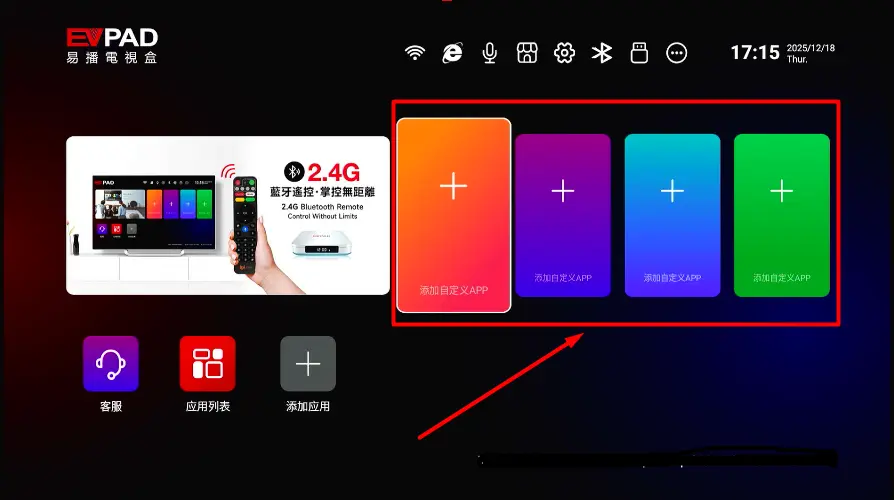
On the EVPAD home screen, navigate to the “Add Custom App” section.
Step 2:
Press and hold the OK button on the remote control.
Step 3:
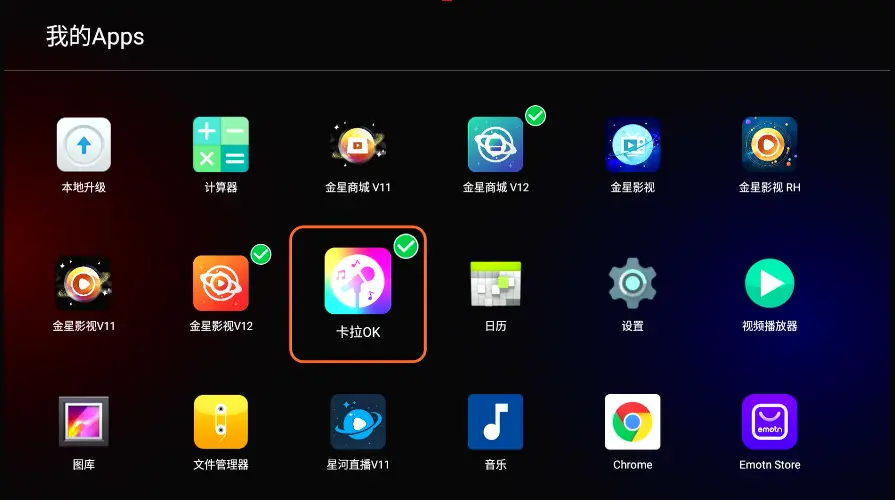
Select the app you want to add and press OK to confirm.
When a ✓ checkmark appears, the app has been added successfully.
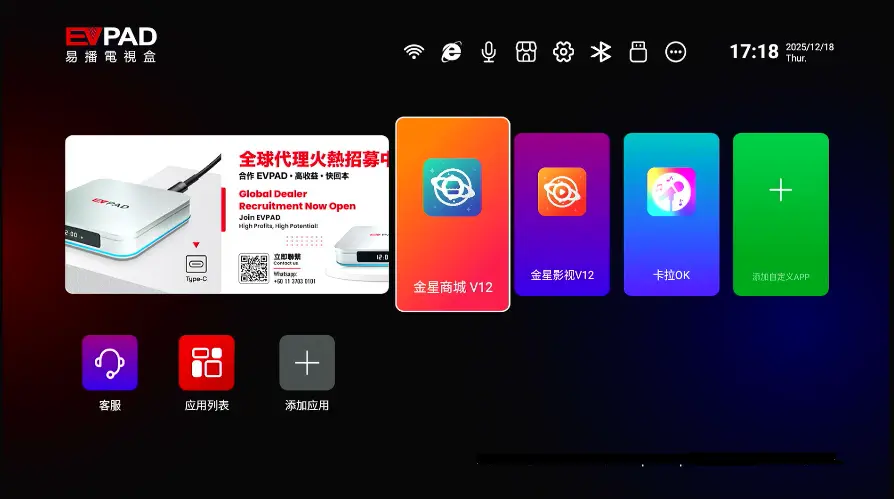
The app will now appear instantly on the EVPAD home screen.
Method 2: Add Apps via the “Add Apps” Section
Step 1:
Navigate to the “Add Apps” section and press OK.
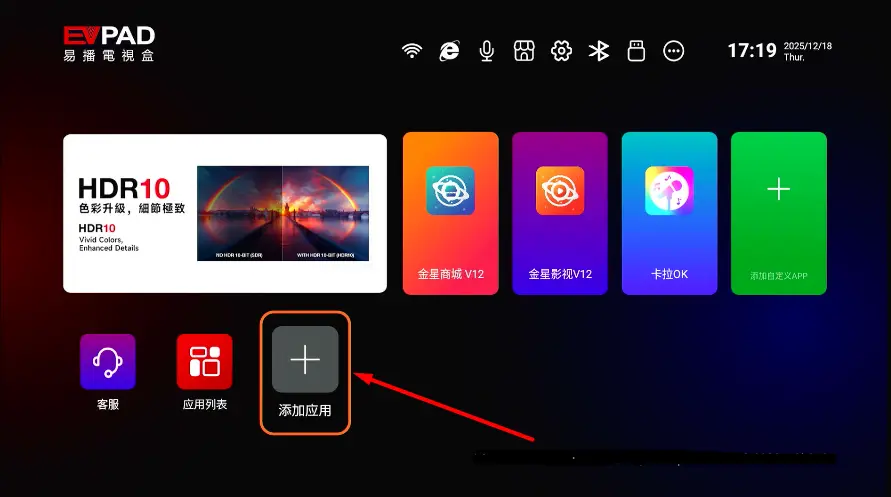
Step 2:
Select the app you want to add and press OK to complete the setup.
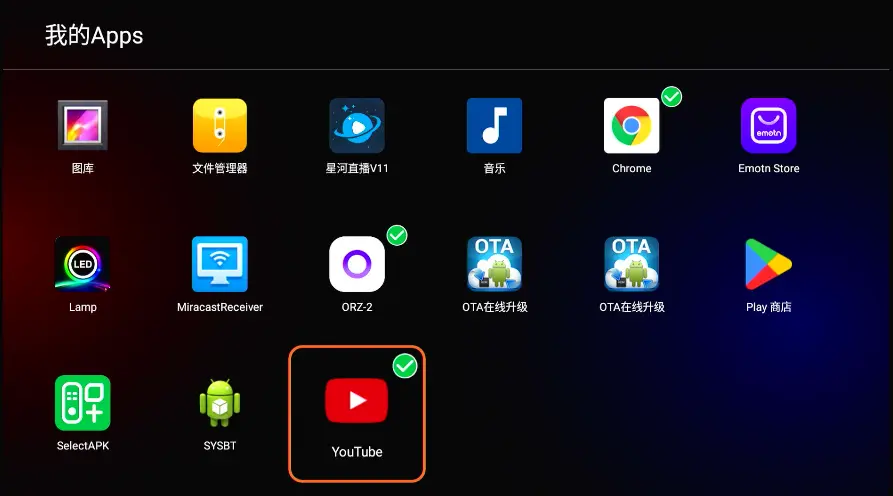
Step 3:
Return to the home screen to confirm and start using the app.
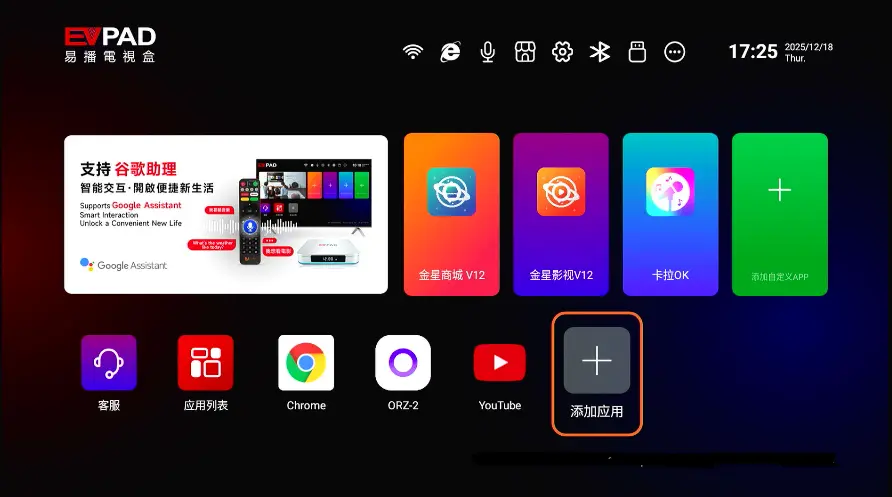
How to Remove Apps from the EVPAD Home Screen
If you want to remove an app from the home screen, follow these steps:
Step 1:
Enter the “Add Apps” or “Add Custom App” section.
Step 2:
Move the cursor to the app you want to remove.
Step 3:
Press OK to deselect it (the ✓ checkmark will disappear).
The app will be removed from the home screen but will remain in the app list, so you can add it again anytime.
Tips & Notes for Managing Apps on the EVPAD Home Screen
-
Adding or removing apps does not affect app data or accounts
-
Place frequently used apps at the front for quicker access
-
Apps on the home screen can be adjusted or removed at any time
-
The “Add Custom App” section supports up to 4 apps
-
The “Add Apps” section has no strict limit, but adding too many apps may clutter the interface
Summary
Adding apps to the EVPAD home screen can greatly enhance usability and efficiency. With just a few simple steps, you can create a clean, organized, and family-friendly EVPAD interface that makes everyday entertainment faster and more enjoyable.
Contact Information
For support, recommendations, or to place an order, contact us directly by clicking the chat button on the bottom-left corner of the screen, or reach out via:
WhatsApp: +60 11-1180 6101
Email: customer@evpadsg.com
To purchase the latest EVPAD model, visit our shop:
https://evpadsg.com/shop/
To explore all our products, visit:
https://evpadsg.com/